Why Office Printers Still Waste So Much Staff Time
IT Club — Powered by Altitude IT (opens in a new tab)

Keep up with IT Club
Add IT Club as a preferred source in Google Search.
Recurring printer problems often come from the wider print environment rather than the printer itself. Microsoft is also moving Windows towards simpler standards-based printing through Windows Ready Print, Mopria and Windows Protected Print Mode.
A member of staff clicks Print. Nothing happens. They click Print again. Still nothing. They select a different printer from the list. They reboot the computer. They ask the person beside them. They call IT. They email the document to a colleague with a different computer. They try another machine.
Twenty minutes later, four copies appear on the printer. The printer eventually worked. The business still lost productive time.
Printing is one of those small technology problems that becomes expensive because it happens repeatedly.
A printer problem rarely costs only the time needed to print the document. It interrupts the user, the IT team and often somebody else who gets dragged in to help.
The Quick Answer
Business printing becomes unreliable when several layers are poorly controlled: printer hardware, network connectivity, IP addressing, print queues, Windows drivers, print servers, user deployment, permissions, firmware and scanning systems.
Modern Windows printing is moving towards standards-based technologies — IPP, Mopria and Windows Ready Print — and Windows Protected Print Mode reduces reliance on traditional third-party print drivers. This may simplify and secure printing over time.
But businesses still need reliable hardware, sensible network configuration, predictable printer deployment, supported firmware, secure configuration and clear support ownership.
A new printer does not fix a badly designed print environment.
Why Printers Still Cause So Much Friction
Most office technology has become simpler over the past decade. Video calls, file sharing, cloud applications and collaboration tools have all become easier to set up and more reliable to use.
Printing has not kept pace. It still involves physical hardware, a local network, operating system components, driver software and — in many offices — a print server. Any of these can fail independently, and a fault in one layer is often misdiagnosed as a fault in another.
The visible object — the printer — receives the blame. The actual cause may be a stale driver, a changed IP address, a corrupted print queue or a permission problem that has nothing to do with the hardware itself.
Where Business Printing Actually Goes Wrong
Printing depends on a complete chain of components working correctly. A failure at any link breaks the whole chain.
Hardware
- Paper — wrong size, wrong tray, paper jam, empty tray
- Toner or ink — depleted, incorrectly seated or counterfeit consumable
- Drum or imaging unit — worn or past service life
- Maintenance kit — overdue for replacement
- Sensors — paper-detection or tray-detection faults
- Mechanical faults — fuser, rollers, duplex unit, stapler
Network
- Poor or unstable Wi-Fi signal
- Changing IP address — DHCP lease renewed with a different address
- DNS resolution failure — printer hostname no longer resolves correctly
- VLAN configuration — printer on a different network segment from user devices
- Firewall rules — print traffic blocked between network zones
- Sleep and power-saving behaviour — printer unreachable until it wakes
- Connectivity loss — switch port failure, cable fault or access point issue
Windows
- Old or incompatible printer driver
- Driver corruption following a Windows update
- Corrupted print queue — stuck jobs blocking subsequent print requests
- User-specific driver installations — printer only works for one account
- Duplicate printer definitions — multiple queue entries for the same device
- Print spooler service failure
Print Server
- Print spooler crash or overload
- Print server offline — all connected queues unavailable
- Permission misconfiguration — some users cannot print
- Queue configuration error — wrong driver deployed to users
Deployment
- Printers manually installed on every computer individually
- Inconsistent printer names — same device listed differently on different computers
- Incorrect queue connection — user connecting to the wrong print path
- Missing drivers on a new computer
- No documented standard configuration
The printer is blamed because it is the visible object. The actual fault may be anywhere in the print chain.
The Hidden Productivity Cost
The cost of a single printing problem appears small. The cost of a print environment that generates the same problems repeatedly is much larger.
Illustrative example (not based on a specific study)
A business with 20 employees, each losing an average of 10 minutes per month to printer problems, loses 200 minutes of staff time per month — approximately 40 staff-hours per year. That figure still excludes IT support time, repeated failed print jobs, wasted paper and consumables, delayed meetings and interrupted concentration.
Scale that to an organisation with 50 or 100 staff, or increase the average interruption to 20 minutes, and the figure becomes significant.
The actual cost is rarely tracked, because each individual incident is small enough to be treated as a one-off. Nobody raises a business case to fix the print environment. IT fixes the immediate problem and moves on.
Small recurring IT failures can cost more than dramatic failures because nobody treats them as a problem worth redesigning.
Printer Hardware Versus Print Infrastructure
When printing fails, the natural response is to look at the printer. Sometimes that is correct. But the print environment — how printers are configured, connected, named, deployed and managed — often matters more than the hardware itself.
A well-configured print environment makes a mid-range printer reliable. A poorly configured environment creates problems for the most expensive hardware on the market.
- Hardware governs: print quality, speed, consumable costs, paper handling, scanning, physical reliability and longevity
- Infrastructure governs: whether users can find and connect to the printer, whether drivers install correctly, whether queues stay clear, whether deployment is consistent and whether configuration survives a new computer or Windows update
Both matter. A business that invests in a new printer without improving the infrastructure will often experience the same problems on different hardware.
Why Printer Drivers Cause Problems
A printer driver is software that translates the output from a Windows application into instructions a specific printer model understands. Historically, every printer has required its own manufacturer-provided driver — and those drivers have been one of the most persistent sources of printing problems.
- Drivers written for an older version of Windows may not work correctly after an upgrade
- Windows updates occasionally break existing driver installations
- Different driver versions installed across different computers create inconsistent behaviour
- Manufacturer drivers vary significantly in quality and update frequency
- A driver that works for one user account may fail for another due to permissions
- Third-party drivers run with elevated privileges in the Windows kernel, creating potential security exposure
The traditional driver model has been a practical necessity, but it has always been a source of instability. Microsoft is working to move away from it.
How Windows Printing Is Changing
Microsoft is moving Windows towards standards-based printing. Rather than relying on manufacturer-specific drivers installed on each computer, the direction is towards open standards that allow Windows to communicate with printers directly without bespoke driver software.
The main standards involved are IPP (Internet Printing Protocol) and Mopria. The main Windows initiatives are Windows Ready Print and Windows Protected Print Mode.
The long-term direction is fewer bespoke printer drivers and more standards-based printing.
What Windows Protected Print Mode Is
Windows Protected Print Mode (WPP) is a Windows 11 feature that restricts the Windows print system to only use Mopria-compatible IPP printing, blocking the installation of traditional third-party manufacturer drivers.
When Protected Print Mode is enabled, Windows communicates with printers using standardised protocols rather than proprietary driver software. This reduces the attack surface associated with kernel-mode third-party drivers and simplifies the driver management burden.
Protected Print Mode requires:
- Windows 11 (22H2 or later)
- A Mopria-compatible printer — either network-connected or connected via USB with IPP-over-USB support
- Microsoft Print Support App infrastructure for printers that need additional functionality
If a printer is not Mopria-compatible, it will not function in Protected Print Mode. Some advanced manufacturer-specific functions — such as certain finishing options, colour profiles or management features — may depend on manufacturer software that cannot run under Protected Print Mode.
Microsoft has indicated a direction towards making Protected Print Mode the default in future Windows releases, but businesses should check current Microsoft documentation for the latest position. As of the time of writing, it is not enabled by default on most devices.
Protected Print Mode can be configured via Group Policy or Microsoft Intune.
Protected Print Mode may simplify and secure printing, but businesses should check printer and scanning compatibility before enabling it widely.
What Windows Ready Print Is
Windows Ready Print is Microsoft's certification for printers that work fully with Windows without requiring a separate manufacturer-supplied driver. A Windows Ready Print certified printer supports IPP and Mopria standards natively.
From a practical perspective, a Windows Ready Print printer should connect to a Windows 11 computer and work without the user or IT team needing to install any driver software. Windows handles the communication using built-in standards-based protocols.
This matters because driver installation has historically been one of the main friction points when deploying printers to new computers — especially in environments without automated deployment tooling.
What Mopria Means for Business Printing
Mopria is an industry standard — developed and maintained by the Mopria Alliance — that defines how computing devices discover and print to printers using IPP over a standard network connection.
Most major printer manufacturers — including HP, Canon, Xerox, Brother, Epson, Ricoh and others — have joined the Mopria Alliance and produce Mopria-compatible devices. The standard is also used for mobile printing from Android and iOS devices.
For Windows, Mopria compatibility is what makes a printer eligible for Windows Ready Print certification and compatible with Windows Protected Print Mode. When evaluating a printer purchase, checking for Mopria certification is a practical indicator of standards-based compatibility.
Traditional versus standards-based printing
Traditional approach: Application → Windows → Manufacturer-specific driver → Printer. Each printer model requires its own driver, installed on each computer, maintained through driver updates.
Standards-based approach: Application → Windows Ready Print → IPP / Mopria → Printer. Windows communicates with the printer directly using open protocols. No manufacturer driver required for supported printers.
Why Microsoft Is Moving Away from Traditional Drivers
Traditional Windows printer drivers run in kernel mode — a privileged area of the operating system. A driver failure or security vulnerability in kernel mode can affect the stability of the entire system, not just the print function.
Microsoft has cited security and reliability as the primary reasons for moving towards standards-based printing. Standards-based print communication does not require third-party code running in kernel mode, which reduces both the attack surface and the risk of driver-related system instability.
From a management perspective, eliminating the need for manufacturer-specific driver packages also simplifies deployment. An IT team managing a fleet of Windows 11 devices does not need to maintain, test and deploy a separate driver package for each printer model.
What Happens to Existing Printers
Businesses with existing printer fleets should not interpret Microsoft's direction as an immediate problem. Legacy printer drivers are not disappearing overnight, and existing printers running on traditional drivers are not about to stop working.
- Existing printers may continue to work with traditional drivers for the foreseeable future — Microsoft is not enforcing Protected Print Mode universally by default at this time
- Compatibility varies by printer model — some existing printers already support Mopria; others do not
- Some advanced manufacturer-specific features may continue to require manufacturer software even after a hardware upgrade
- Businesses should assess printer standards-based compatibility as part of their normal hardware refresh cycle rather than as an emergency response
This is a technology direction, not a date on which every existing office printer becomes a paperweight.
The practical approach is to favour Mopria-compatible hardware when replacing printers, test Protected Print Mode compatibility before enabling it widely, and plan the transition as part of normal IT lifecycle management.
What Happens to Scanning
Scanning is frequently overlooked when printing changes are being planned. A multifunction printer that handles printing, copying and scanning is three pieces of technology in one device — and scanning often has different compatibility requirements from printing.
Windows Protected Print Mode currently applies to the print function. Scanning — particularly scan-to-computer via WIA or TWAIN drivers — may still require manufacturer software even on a Mopria-compatible printer.
Scan-to-email and scan-to-folder functions are typically handled at the printer itself rather than through Windows, using SMTP or SMB protocols. These configurations may be affected by:
- Email provider restrictions on basic SMTP authentication — several providers including Microsoft 365 have deprecated or restricted legacy authentication methods
- SMB protocol version requirements — older SMBv1 scan-to-folder configurations may no longer be supported by modern file servers
- Firewall or network changes that affect the printer's ability to connect to the mail server or file share
- Stored credential expiry — scan-to-email credentials saved on the printer that are no longer valid
When planning any change to the print environment — including enabling Protected Print Mode, replacing hardware or changing network configuration — scanning workflows should be tested explicitly and not assumed to continue working.
Network Printers and IP Addresses
Most printing problems that appear intermittent — working for some users but not others, working yesterday but not today — trace back to the network layer rather than the printer or driver.
IP address management is one of the most common sources of print environment instability. A printer configured to receive its IP address from DHCP will be assigned a different address if its DHCP lease expires while the device is powered off. Any computers connecting directly to that IP address will then be unable to find the printer.
The established approach is to give printers a predictable, stable IP address — either through a static assignment on the device or by reserving the address in the DHCP server using the printer's MAC address. Either method ensures that the printer is always reachable at the same address, regardless of how long it has been powered off.
Other network considerations that affect print reliability include:
- Wi-Fi versus Ethernet — office printers benefit significantly from a wired Ethernet connection rather than Wi-Fi. Wi-Fi introduces signal variability, interference and sleep behaviour that make printers appear offline intermittently
- VLAN design — if user devices and printers are on different network segments, firewall or routing rules must permit print traffic between them
- DNS — printers referenced by hostname rather than IP address require correct DNS records that are updated whenever the printer's address changes
Print Servers
A print server is a server that receives print jobs from user devices and forwards them to physical printers. It provides a central point for managing queues, drivers and permissions — users connect to the print server rather than directly to the printer.
Print servers are common in medium and larger organisations because they simplify deployment — printers are installed once on the server and distributed automatically to user computers — and provide central logging and control.
The main risks associated with print servers:
- Single point of failure — if the print server is unavailable, all connected queues become unavailable
- Driver management overhead — the server must maintain compatible drivers for every connected printer model
- Print spooler vulnerabilities — the Windows Print Spooler service has historically been a significant source of security vulnerabilities
- Infrastructure dependency — print servers require patching, backup and lifecycle management like any other server
Some organisations are moving away from traditional on-premises print servers towards cloud-based print management or direct IPP printing, particularly where Microsoft Universal Print or hybrid working requirements make a central server difficult to justify.
Microsoft Universal Print
Microsoft Universal Print is a cloud-based print management service that allows printers to be managed and deployed through Microsoft 365 and Microsoft Entra ID rather than through a traditional on-premises print server.
Potential benefits include:
- Print queues managed in the cloud rather than on an on-premises server
- Printers deployed to users through Microsoft Intune, associated with Entra ID identities
- Reduced dependency on a traditional Windows print server
- Centralised reporting and print job logging
- Simplified deployment for remote and hybrid users
Limitations and considerations include:
- Licensing — Universal Print requires a qualifying Microsoft 365 subscription or a separate licence add-on
- Compatible printers — Universal Print natively supports Mopria-certified printers that can connect directly; older hardware requires a Universal Print connector software running on a local machine
- Internet dependency — cloud-managed print queues require internet connectivity; printing is disrupted if internet access is lost
- Advanced print features — some manufacturer-specific capabilities may not be available through Universal Print
- Migration complexity — transitioning from an existing print server environment requires planning and testing
Moving a print queue to the cloud does not repair an unreliable physical printer.
Printer Deployment with Intune
In a Microsoft Intune-managed environment, printers can be deployed automatically to user devices using configuration profiles or PowerShell scripts — without requiring users or IT staff to install anything manually.
A well-managed printer deployment provides:
- Consistent printer names across all devices — the same printer appears with the same name on every computer
- Correct printers by user, device or physical location — staff at a particular office receive the printers relevant to that office
- Automated driver installation — Intune delivers the required driver or configuration without manual intervention
- Default printer configuration — the correct default is set during deployment rather than relying on users to configure it
- Documented, repeatable configuration — new computers receive the same setup automatically
If every new laptop requires somebody to manually add the office printers, the problem is deployment — not printing.
Remote and Hybrid Workers
Remote and hybrid working has made printer management more complex for many organisations. A user working from home has no access to the office print environment and may have a personal printer connected to their home network.
Common issues in hybrid environments include:
- VPN-connected users attempting to print to office printers over a remote connection — this may or may not work depending on VPN and network design
- Laptop default printer changing between the office and home environments — Windows may remember different defaults for different network locations
- Office printers appearing as unavailable when the user is working remotely
- Inconsistent print quality or driver behaviour between personal and corporate printers
Cloud-based print management, including Universal Print, can help provide a more consistent experience for users who move between locations, because queues and permissions follow the user's Entra identity rather than their physical location.
Printer Security
A modern multifunction printer is effectively a networked computer with paper attached.
Printers contain processors, memory, storage and network interfaces. Many store copies of recent documents on internal storage. Many have web-based management interfaces. All of these represent security considerations that are frequently overlooked.
- Default administrator passwords — printer manufacturers ship devices with default credentials that must be changed during setup
- Unsupported firmware — printers with manufacturer firmware updates available should have those updates applied; printers beyond end-of-life no longer receive security patches
- Management interfaces — web-based printer administration should be restricted to authorised network ranges and protected with strong credentials
- Unnecessary protocols — protocols not required for operation (such as legacy FTP, Telnet or outdated SMBv1) should be disabled
- Internet exposure — printers should not be directly accessible from the internet; firewall rules should prevent external access
- Stored address books — scan-to-email address books stored on the printer may contain sensitive contact information
- Stored documents — some printers retain recent jobs in internal memory or storage; this should be reviewed and cleared before device disposal
- Scan-to-email credentials — SMTP credentials stored on the printer for scan-to-email should use dedicated accounts with appropriate restrictions
- Network segmentation — placing printers on a dedicated network segment with controlled access to print services reduces exposure if a device is compromised
- Disposal — internal storage should be wiped or physically destroyed when a printer is decommissioned
Cyber Essentials — the UK government-backed security certification — covers networked devices, which includes printers connected to the business network. Unsupported firmware and default credentials are common findings during Cyber Essentials assessments.
When to Replace an Old Printer
The decision to replace a printer is often made reactively — after a major fault — or avoided indefinitely because no single fault is serious enough to force the issue. Neither approach serves the business well.
Consider replacing a printer where:
- Manufacturer support has ended and firmware updates are no longer available
- Recurring hardware faults are consuming significant IT or maintenance time
- The device does not support Mopria or modern IPP printing
- Windows driver support is unreliable or no longer maintained
- Consumables are becoming difficult or expensive to obtain
- Scanning functions are unreliable or incompatible with current network security requirements
- Security controls are inadequate and cannot be improved through configuration
- Print requirements have changed significantly — volume, format, finishing or location
- Too many different printer models are creating a driver management and consumable procurement burden
Age alone is not a sufficient reason to replace a printer. A well-maintained device that continues to meet the organisation's needs, receives firmware updates and functions reliably may be worth retaining.
Replace a printer because it has become unsupported, unreliable or operationally unsuitable — not simply because a newer one exists.
Is Your Printer Setup Wasting Staff Time?
Review each area. Gaps in any of these are worth addressing before investing in new hardware.
Hardware
- Are printers reliable, with a low rate of recurring hardware faults?
- Are consumables readily available from multiple suppliers?
- Is firmware maintained and currently supported by the manufacturer?
Network
- Do printers use predictable, stable IP addresses?
- Are network connections reliable — Ethernet preferred over Wi-Fi?
- Is Ethernet used where practical to avoid Wi-Fi interference and sleep issues?
Deployment
- Are printer names standardised and consistent across all computers?
- Are printers deployed automatically where possible through Group Policy, Intune or a print server?
- Do new computers receive the correct printers without manual intervention?
Windows
- Are old drivers still required, or could standardised deployment reduce the driver burden?
- Are printers Mopria-compatible for future Windows printing direction?
- Has Protected Print Mode compatibility been assessed for existing hardware?
Scanning
- Does scan-to-email work reliably using a supported authentication method?
- Does scan-to-folder use a supported SMB protocol version?
- Are scanning workflows documented so they can be restored after configuration changes?
Security
- Have default passwords been changed on all printers?
- Is firmware maintained and applied?
- Are web-based management interfaces restricted to authorised access?
- Are scan-to-email credentials using appropriate, purpose-specific accounts?
Support
- Is somebody responsible for the printer estate as a whole?
- Are repeat faults tracked so recurring problems can be identified?
- Are persistently unreliable printers reviewed rather than repeatedly patched?
Common Mistakes
- Buying entirely on purchase price — ignoring total cost of ownership, consumable costs, driver quality and long-term support
- Installing different drivers on different computers — creating inconsistent behaviour and making problems harder to diagnose
- Repeatedly adding printers manually — a deployment problem being treated as an individual task
- Using Wi-Fi unnecessarily — introducing instability that an Ethernet connection would eliminate
- Unmanaged IP addressing — allowing printers to receive DHCP-assigned addresses that can change
- Ignoring firmware — leaving printers unpatched and potentially vulnerable
- Leaving default administrator passwords — failing to change credentials during initial setup
- Keeping unsupported devices indefinitely — retaining hardware past its firmware support lifecycle
- Enabling Protected Print Mode without testing — discovering incompatible printers or scanning failures after rollout
- Assuming Universal Print solves hardware faults — cloud-managed queues do not repair physical printers
- Running too many printer models — multiplying driver, consumable and support complexity
- Inconsistent printer names — making it difficult for users to identify the correct queue
- No documentation — making it difficult to restore configuration after changes
- No replacement policy — making decisions reactively rather than on a planned lifecycle
- Treating recurring problems as isolated incidents — failing to recognise that the same fault appearing repeatedly indicates a systematic issue
If the same printer fault has been fixed five times, it has not actually been fixed.
Practical Business Implications
Microsoft's direction towards standards-based printing has practical implications for procurement, deployment and lifecycle planning:
- When purchasing new printers, favour Mopria-certified devices — they will be compatible with both current and future Windows printing approaches
- Windows Ready Print certification indicates a printer that will work without a manufacturer-specific driver on supported Windows versions
- If planning to enable Windows Protected Print Mode, test each printer and scanning workflow before rolling out to all devices
- Businesses using Microsoft Intune to manage Windows devices should review whether printer deployment via Intune could replace manual installation or legacy Group Policy scripts
- Organisations evaluating Microsoft Universal Print should assess licensing costs, connector requirements for older hardware and internet-dependency implications
- Include printer firmware support and Mopria compatibility in printer replacement evaluation criteria
The IT Club View
Printers are not exciting. That is one reason businesses tolerate bad printer setups for years. The recurring interruptions remain — IT fixes today's queue, the same problem reappears next week, and nobody treats it as worth redesigning.
Microsoft's move towards standards-based printing could remove some of the historic driver problems that have made office printing unnecessarily fragile. Windows Ready Print, Mopria compatibility and Protected Print Mode represent a genuine improvement in direction. But reliable business printing still depends on suitable hardware, sensible networking, consistent deployment, secure configuration, maintenance and lifecycle planning.
The best printer is not the one with the longest specification sheet. It is the one your staff can use without thinking about it.
If printing keeps generating support calls, stop asking how to clear today's queue and start asking why the print environment keeps creating the same problem.
Office printers can consume far more staff and IT time than businesses realise because printing depends on hardware, networking, Windows drivers, queues, deployment and scanning all working together. Microsoft is moving Windows towards standards-based printing through Windows Ready Print, Mopria and Windows Protected Print Mode, which may reduce driver problems over time. Businesses should focus on reliable deployment, supported hardware, secure configuration and eliminating recurring faults rather than repeatedly fixing the same individual printer problem.
Related Business Questions
Why does my office printer keep going offline?
Printers appear offline when Windows cannot reach them on the network. The most common causes are an IP address change (the printer received a new DHCP address), Wi-Fi instability, a switch port fault or the printer entering a deep sleep state. Using a stable IP address and an Ethernet connection resolves most intermittent offline problems.
Why does Windows keep losing my printer?
If a printer disappears after a Windows update or reboot, the most likely cause is a driver conflict or a connection that was installed per-user rather than system-wide. Consistent, centrally managed deployment prevents this — printers should be deployed through Group Policy, Intune or a print server rather than installed manually by individual users.
Why do print queues get stuck?
A stuck print queue usually contains a failed job that cannot be processed. The Windows Print Spooler service can be restarted to clear the queue, though IT teams should also identify why the job failed — corrupted document, driver mismatch, permission issue or printer communication problem — to prevent recurrence.
Why does the printer work for one employee but not another?
This typically indicates a per-user driver installation, a permissions problem on the printer queue, or different default printer settings between accounts. In a well-managed environment, printers are installed at the system level with consistent permissions and are not dependent on which user account is logged in.
Should business printers use Wi-Fi or Ethernet?
Ethernet is preferable for office printers. Wi-Fi introduces signal variability, interference and sleep behaviour that cause printers to appear offline intermittently. An Ethernet-connected printer with a stable IP address provides a significantly more reliable experience.
Should printers have static IP addresses?
Printers should have predictable IP addresses — either a static address configured on the device, or a DHCP reservation in the router or switch that assigns the same address whenever the device connects. Both approaches prevent the printer from being assigned a different address after the DHCP lease expires.
What is Windows Protected Print Mode?
Windows Protected Print Mode (WPP) is a Windows 11 feature that restricts the print system to Mopria-compatible IPP printing, blocking traditional third-party manufacturer drivers. It is designed to improve security by removing kernel-mode driver code and simplify printing for compatible devices. It requires Mopria-compatible hardware and should be tested for compatibility before enabling across all devices.
Should businesses enable Protected Print Mode?
Businesses should assess compatibility before enabling it. Check whether each printer is Mopria-certified, test whether scanning continues to work, and confirm whether any advanced print features require manufacturer software. Protected Print Mode offers genuine security and simplification benefits for compatible environments, but incompatible hardware or scanning workflows will stop working.
What is Windows Ready Print?
Windows Ready Print is a Microsoft certification indicating that a printer works fully with Windows using IPP and Mopria — without requiring a separate manufacturer-supplied driver. A Windows Ready Print printer should connect and work on Windows 11 without any driver installation step.
What is Mopria?
Mopria is an industry printing standard maintained by the Mopria Alliance, supported by most major printer manufacturers. It defines how devices discover and communicate with printers using IPP over a network connection. Mopria compatibility is required for Windows Protected Print Mode and Windows Ready Print certification.
Is my printer Mopria compatible?
Most printers produced by major manufacturers in the past several years support Mopria. Check the printer's specification sheet, the manufacturer's product page or the Mopria Alliance website (mopria.org) for a searchable list of certified devices. Older models may not be certified.
Will old printers stop working in Windows?
Not immediately. Windows Protected Print Mode is not currently enabled by default on most devices, and Microsoft has not announced a date on which traditional third-party drivers will stop working. Older printers may continue to function for the foreseeable future. However, businesses should factor Mopria compatibility into future procurement decisions.
Is Microsoft removing printer drivers?
Microsoft is moving Windows in a direction that reduces reliance on third-party printer drivers. Windows Protected Print Mode blocks them when enabled. Microsoft has stated a long-term direction away from kernel-mode third-party drivers. Legacy drivers are not being removed from existing installations immediately, but the strategic direction is clear.
What is IPP printing?
IPP (Internet Printing Protocol) is the network protocol used for modern standards-based printing. It allows computing devices to discover printers, send print jobs and receive status information using open standards rather than manufacturer-specific protocols. IPP is the foundation for Mopria, Windows Ready Print and Windows Protected Print Mode.
What is Microsoft Universal Print?
Microsoft Universal Print is a cloud-based print management service included with qualifying Microsoft 365 subscriptions. It allows printers to be managed and deployed through Microsoft Entra ID and Intune rather than through an on-premises print server. Compatible printers connect directly to Universal Print; older hardware requires a connector application running on a local machine.
Do businesses still need print servers?
Many small and medium businesses are reconsidering traditional print servers. Direct IPP printing, Universal Print and Intune-based deployment can provide centralised management without a dedicated on-premises print server. Whether to retain a print server depends on the size of the printer fleet, existing infrastructure and whether the organisation has Universal Print licensing.
Can printers be deployed through Intune?
Yes. Printers can be deployed to Microsoft Intune-managed Windows devices using configuration profiles or PowerShell scripts. This allows printers to be assigned automatically to devices or users — for example, deploying the office printer to all devices enrolled at a particular location — without manual installation.
Can Universal Print replace a print server?
Universal Print can replace a traditional on-premises print server for organisations whose printers are compatible and who hold the required Microsoft 365 licensing. Older printers can be connected via a Universal Print connector, but this requires a local machine to run the connector software. The cloud dependency means printing requires internet access.
Why does scanning stop working after printer changes?
Scanning functions — particularly scan-to-email and scan-to-folder — are configured separately from printing and use different protocols. Changes to network configuration, email authentication settings (such as Microsoft 365 deprecating basic SMTP authentication), SMB protocol versions or stored credentials on the printer can all cause scanning to fail independently of print functions. Scanning should be explicitly tested after any print environment change.
Are printers a cyber-security risk?
Yes. A networked multifunction printer is a computer with storage, a processor, a web interface and network connectivity. Risks include default credentials, outdated firmware with known vulnerabilities, web management interfaces exposed to unauthorised users, stored documents and scan-to-email credentials. Printers should be included in the organisation's security baseline — firmware patching, default credential changes and management interface restrictions all apply.
When should a business replace a printer?
Replace when the manufacturer has ended firmware support, when recurring faults consume significant support time, when Mopria or modern Windows printing is not supported, when consumables are difficult to obtain, or when scanning is unreliable. Age alone is not sufficient reason — a well-maintained, supported printer that meets the organisation's needs can continue in service.
Can IT Club help assess a printer problem?
IT Club is an independent educational resource for business owners. For a structured review of your print environment, use the Business Printer Health Checklist in the IT Club Knowledge Centre as a starting point, then discuss the findings with your IT provider.
Related Resources
Business Printer Health Checklist — IT Club Knowledge Centre →
How to Choose an IT Support Company in Manchester — Buyer's Guide →
How to Choose an IT Support Company in Bristol — Buyer's Guide →
How to Choose an IT Support Company in London — Buyer's Guide →
How to Choose an IT Support Company in Leeds — Buyer's Guide →
How to Choose an IT Support Company in Birmingham — Buyer's Guide →
Good IT Support Isn’t Just Fixing Problems →
Wi-Fi 7 for Business: Should You Upgrade Yet? →
10 Microsoft 365 Features Your Business May Already Be Paying For →
Plain-English Takeaway
Office printers can consume far more staff and IT time than businesses realise because printing depends on hardware, networking, Windows drivers, queues, deployment and scanning all working together. Microsoft is moving Windows towards standards-based printing through Windows Ready Print, Mopria and Windows Protected Print Mode, which may reduce driver problems over time. Businesses should focus on reliable deployment, supported hardware, secure configuration and eliminating recurring faults rather than repeatedly fixing the same individual printer problem.
Need the practical steps?
A short, instruction-led version of this topic is available in the Knowledge Centre.
View the Knowledge Centre Guide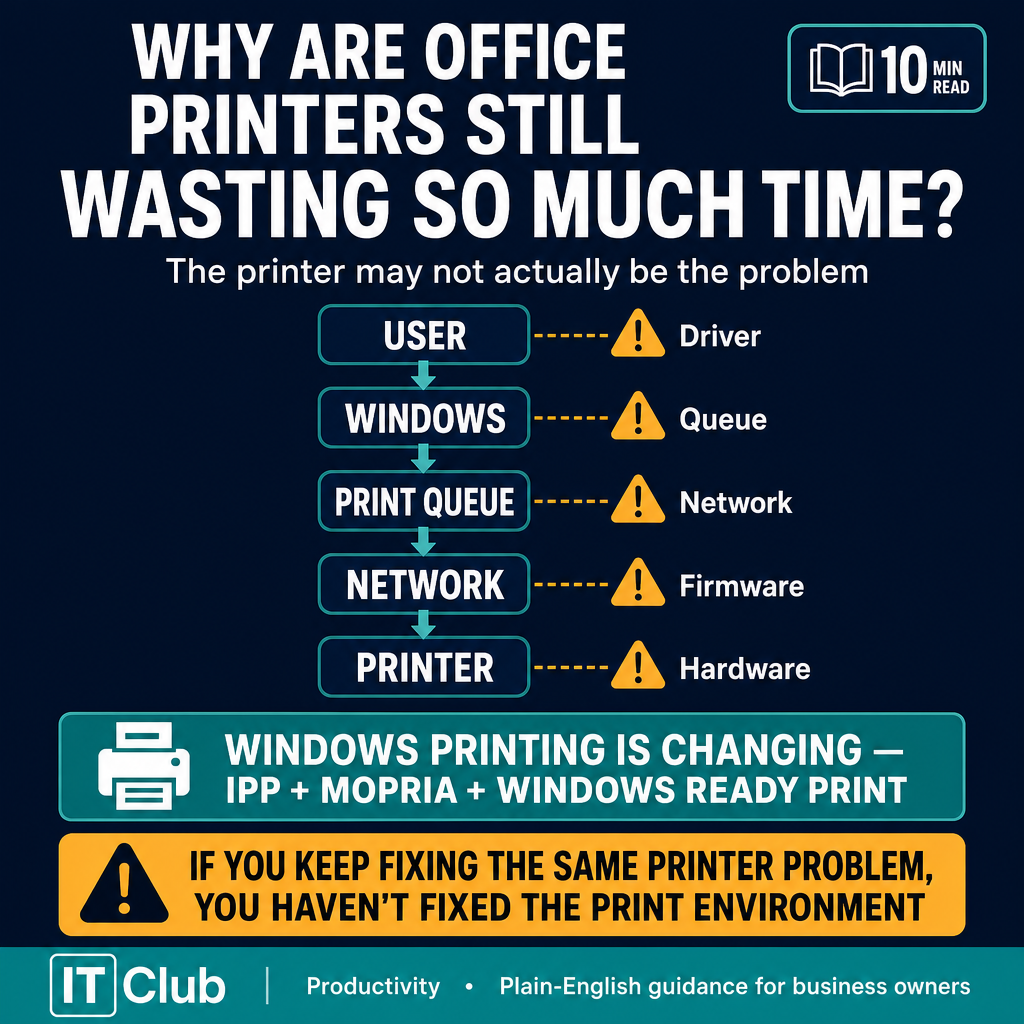
Tap to follow The IT Club Briefing on WhatsApp.
Related Articles
Someone emailed you Documents. Make the subject useful before you forget what it is
Classic Outlook for Windows lets you give a received message a subject you will recognise later. The same steps do not apply to every Outlook app.
Read articleToo Many Repetitive Emails? Make Outlook Clear Them Up Automatically
If the same newsletters, notifications or routine reports keep arriving, Outlook can often file or remove them for you.
Read articleMake Important Emails Stand Out Automatically in Outlook
Use Outlook's current formatting, categories and rules to make important business messages easier to recognise without treating every email as urgent.
Read articleNeed help putting this into practice?
IT Club helps you understand the technology. If you need implementation, support or consultancy, the teams behind IT Club can help.
Altitude IT (opens in a new tab) — IT support, cyber security, Microsoft 365 and technology operations.
Altitude AI (opens in a new tab) — AI discovery, automation, governance and implementation.