Remote Desktop Without Leaving Your PC Switched On: Windows 365, Azure Virtual Desktop or Remote Access?
IT Club — Powered by Altitude IT (opens in a new tab)

Keep up with IT Club
Add IT Club as a preferred source in Google Search.
For one person who needs the same Windows desktop from different locations without leaving a physical PC running, Windows 365 is usually the right starting point. This article explains the difference between remote-control software, cloud PCs and virtual desktop platforms — and challenges whether a cloud desktop is actually needed at all.
This question has been published anonymously. Details that could identify the person or organisation have been removed.
The Question
"I want the same Windows desktop when I work away from home, but I don't want to leave my normal PC switched on all the time. Should I use remote-access software, Azure Virtual Desktop or a cloud PC?"
— Asked anonymously. Generalised from a real enquiry.
The Short Answer
If you want a persistent Windows desktop that is available wherever you are — without leaving another physical PC switched on — a cloud-hosted desktop is usually a better fit than traditional remote-access software.
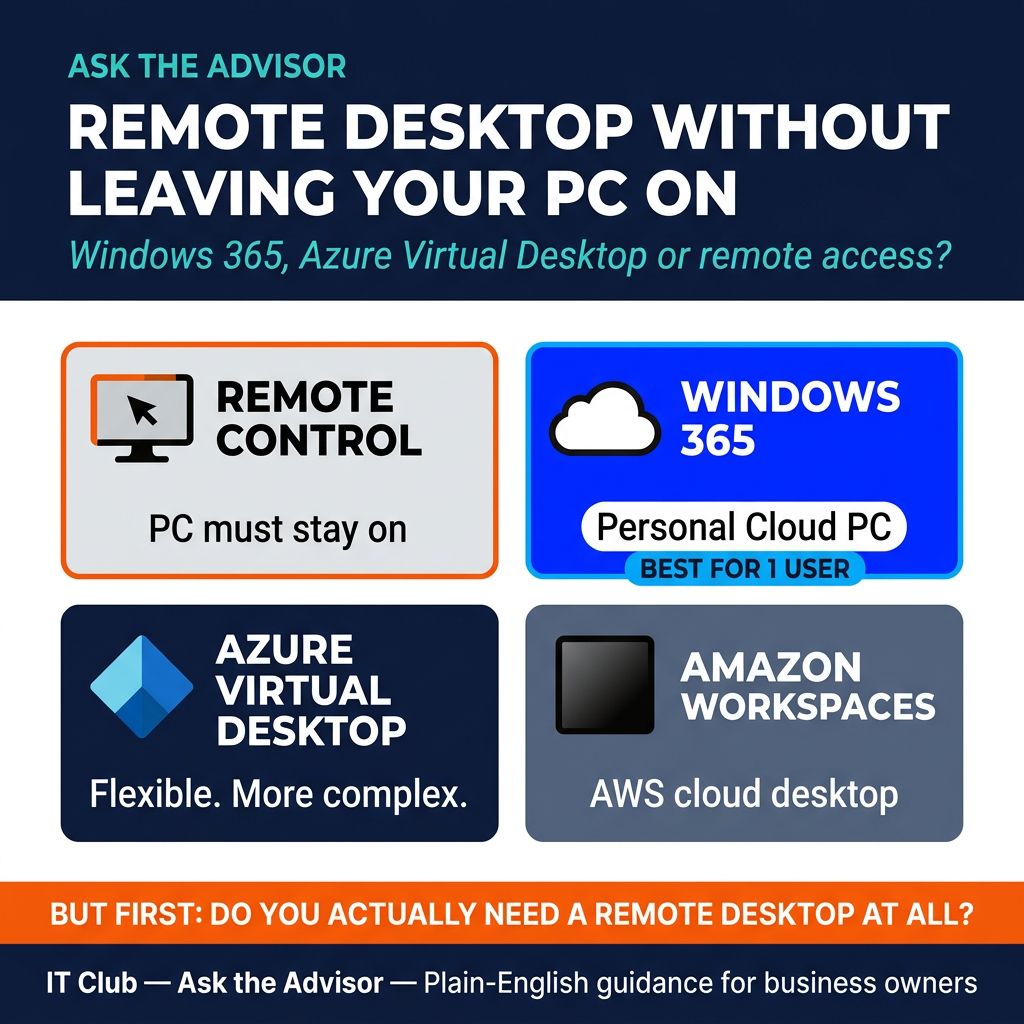
For a single user or small number of users, we would normally assess these options in roughly this order:
- Windows 365 Cloud PC — the simplest starting point for most Microsoft-centric businesses
- Azure Virtual Desktop — more flexible, but more design and management overhead
- Amazon WorkSpaces Personal — a genuine alternative, particularly where AWS is already in use
- A dedicated Azure virtual machine — only where there is a specific reason for the extra control and complexity
Traditional tools such as TeamViewer or LogMeIn can still be useful, but they normally require the computer being accessed to remain powered on and connected.
If the desktop lives in the cloud, there is no office PC to leave switched on.
There Are Three Different Ways to Solve This
Before comparing products, it is worth being clear about which model you are actually choosing. There are three fundamentally different approaches.
Option 1 — Remote Control of an Existing PC
Tools such as TeamViewer, LogMeIn and Splashtop let you control your physical PC from another device. The existing PC stays switched on, connected to the internet and running Windows. You see and control that machine remotely.
- Advantages: familiar desktop, existing applications, existing files in place, minimal migration, often quick to configure
- Disadvantages: the physical PC must remain powered on; a local power cut or internet outage stops remote access; a Windows update or unexpected reboot interrupts the session; hardware failure stops access entirely; the remote-access software becomes another security dependency
- Best suited to: occasional access, temporary requirements, remote support, or situations where migrating the desktop is not justified
Remote-control software gives you access to your existing PC. It does not remove your dependency on that PC.
Option 2 — Cloud PC / Desktop as a Service
Products such as Windows 365 and Amazon WorkSpaces Personal move the desktop itself into a cloud data centre. The user connects from a laptop, desktop, tablet or browser. There is no physical office PC that must remain switched on. Files, applications and settings remain on the hosted desktop.
- Advantages: persistent desktop accessible from different locations; no dependency on a physical PC being powered; central management; easier device replacement; data can remain in the hosted environment; predictable user experience
- Potential disadvantages: recurring monthly cost; internet connection always required; applications must be installed or migrated; peripheral compatibility needs checking; printing and scanning need testing; performance depends on service sizing and the quality of the connecting network
For one person who simply wants 'my Windows PC, wherever I am', a Cloud PC is often the cleanest model.
Option 3 — Virtual Desktop Infrastructure
Platforms such as Azure Virtual Desktop (AVD) go further, providing a full virtual desktop environment hosted in Azure. AVD can support personal or pooled desktops, multiple users, shared session hosts, application delivery, autoscaling and custom networking. It is more powerful and more flexible than a straightforward Cloud PC — but also more complex to design, deploy and manage. It is considered separately in its own section below.
Windows 365
Windows 365 provides a persistent Windows Cloud PC hosted by Microsoft. The user receives essentially their own Windows desktop in the cloud — the same environment every time they connect, regardless of which physical device they are using.
Users access their Cloud PC through the Windows App (the current supported client for Windows 365 and Azure Virtual Desktop access). Microsoft has moved away from the older Remote Desktop client for this purpose. Verify the current client name and method at Microsoft Learn before documenting this for users.
- Persistent personal desktop — the same Windows environment every session
- Microsoft ecosystem integration — works naturally with Microsoft 365, Microsoft Entra identity and (depending on edition and licensing) Intune device management
- Predictable per-user monthly licensing — easier to budget than consumption-based Azure infrastructure
- Simpler architecture than a full Azure Virtual Desktop deployment
- No need to manage underlying Azure infrastructure directly
- Fixed recurring cost regardless of usage — the Cloud PC runs continuously
- Licence sizing must match the workload — choose too small and performance suffers; too large and you overpay
- Less infrastructure flexibility than Azure Virtual Desktop for complex requirements
- Local device and peripheral requirements still apply — camera, microphone, printer and peripheral compatibility depend on the connecting device
Windows 365 is closer to renting a managed Windows computer than building your own virtual-desktop infrastructure.
Azure Virtual Desktop
Azure Virtual Desktop (AVD) is Microsoft's more flexible virtual-desktop platform. Where Windows 365 gives each user a straightforward personal Cloud PC, AVD allows more complex configurations: personal or pooled desktops, multiple users sharing session hosts, published applications, autoscaling, custom networking and tighter integration with the broader Azure platform.
- Flexibility: pooled desktops, application delivery, autoscaling, custom Azure networking
- Potentially efficient for several users sharing resources
- Full control over the underlying Azure infrastructure
- Can be cost-effective at scale with good design
- More design, administration and ongoing management than Windows 365
- Azure cost management requires attention — compute, storage, networking and backup all have separate costs
- Requires decisions about profile design (typically FSLogix), image management, scaling configuration and monitoring
- Skills and ongoing management overhead may outweigh the flexibility for simple requirements
AVD is powerful, but for one straightforward user it can be more platform than the problem requires.
Amazon WorkSpaces Personal
Amazon WorkSpaces Personal provides persistent virtual desktops through AWS. Users receive the same personal desktop each time they connect. AWS offers monthly AlwaysOn pricing options and AutoStop configurations where the WorkSpace suspends when not in use, which can suit intermittent users.
Note on current product availability: Amazon WorkSpaces Pools is no longer available to new customers from July 2026 and is being retired. Amazon WorkSpaces Personal remains the relevant product for persistent individual desktops. Verify current AWS product status at aws.amazon.com/workspaces before recommending.
- Mature Desktop-as-a-Service platform with a long track record
- Persistent desktop accessible from multiple devices
- AutoStop configuration can reduce cost for less frequent users
- Strong fit for organisations already invested in AWS infrastructure
- Introduces a second cloud platform where the organisation otherwise uses Microsoft
- Windows licensing structure differs from the Microsoft model
- Administration tools and identity integration may be less familiar to Microsoft-focused SMEs
- Application and identity integration with Microsoft 365 requires planning
Amazon WorkSpaces is perfectly viable, but a Microsoft 365 business may gain little by introducing AWS solely for one desktop unless the pricing or technical requirement justifies it.
Could I Just Create a Windows Virtual Machine in Azure?
Technically, yes. Azure allows you to create a Windows desktop-class virtual machine. But there is an important distinction between a raw Azure virtual machine and the managed services above.
A raw Azure VM for remote desktop access introduces decisions that Windows 365 and AVD handle for you: operating system licensing for remote access, secure remote connectivity, identity integration, RDP security, endpoint protection, patching, backup, disk configuration, networking, VM start and stop automation, monitoring, and cost management. Each of these is solvable — but each requires a decision and an implementation.
A public IP address and an open RDP port are not a sensible remote-working design.
Exposing TCP port 3389 — the default Remote Desktop Protocol port — directly to the internet is strongly inadvisable. It becomes an immediate target for automated credential attacks. A raw Azure VM used as a remote desktop must be protected through a proper approach: Azure Bastion, a VPN gateway, Conditional Access or a similar secure access method. The technically simplest way to build a remote Windows computer is not always the simplest way to operate one securely.
Quick Decision Tree
Work through these questions in order to identify the likely starting point.
- Do you genuinely need the exact same Windows desktop? No → Consider a managed laptop plus Microsoft 365 instead
- Is this mainly one person? Yes → Consider Windows 365 first
- Several users, pooled desktops or shared applications? Yes → Consider Azure Virtual Desktop
- Already heavily invested in AWS, or intermittent use makes usage-based pricing attractive? Yes → Consider Amazon WorkSpaces Personal
- Only need occasional access to an existing physical PC, and leaving it on is acceptable? Yes → Consider TeamViewer, LogMeIn or equivalent remote-access software
- Very specific server-like requirement? Possibly → Azure VM, but only after verifying licensing and designing access security properly
Do not start by building an Azure VM just because it can run Windows.
Which Would We Choose?
One user, wants the same desktop every day, Microsoft 365 business
Likely starting point: Windows 365. A persistent Cloud PC that the user can access from any device, without leaving a physical machine running.
One or two users, only need access occasionally, AWS already in use
Consider: Amazon WorkSpaces Personal with an AutoStop configuration so the desktop suspends when not in use.
Several users, shared applications, variable usage
Consider: Azure Virtual Desktop, where pooled resources and autoscaling become worthwhile.
Very specific server-like requirement
Potentially: an Azure VM — but only after confirming licensing is correct and remote access is properly secured.
Occasional access to an existing PC, leaving it switched on is acceptable
Potentially: TeamViewer, LogMeIn or equivalent. Simple to configure for occasional use.
Choose the simplest platform that solves the business problem securely.
Why Windows 365 Is Often the Right Starting Point Here
For the scenario described — one person, Microsoft 365 environment, wants the same desktop from different locations without leaving a PC running — Windows 365 would usually be the first solution IT Club would price.
It provides a persistent Windows Cloud PC, integrates naturally with the existing Microsoft environment, avoids leaving a physical machine running, has a predictable monthly cost and is substantially simpler to manage than building a full Azure Virtual Desktop deployment.
For a single Microsoft-centric user, Windows 365 is often the option I would price first.
But before finalising that recommendation, we would want to understand:
- Existing Microsoft licensing — to confirm whether the Windows 365 licence is additive or overlaps with anything already in place
- CPU, memory and disk requirements — particularly for any specialist or resource-intensive applications
- Specialist applications — line-of-business software, design tools, accounting packages and similar applications need compatibility checking
- Printing and scanning requirements — these need testing against the specific devices the user has
- Video conferencing — Teams optimisation and camera and microphone behaviour depend on the configuration
- Authentication and Conditional Access — how the user signs in and what access controls should apply
- Local device — what the user will connect from and whether it meets the requirements
- Backup requirements — what data needs protecting and how
- Data location — where files and application data should reside
- Broadband quality — performance at home and from regular travel locations
The Internet Connection Still Matters
Moving the PC to the cloud removes the dependency on the home or office PC being powered on. It does not remove the dependency on a usable internet connection at both ends.
Cloud desktop sessions typically carry display output, keyboard input, mouse movements, audio and peripheral traffic — not the full desktop application running locally. This means the bandwidth requirement is lower than downloading large files, but latency and connection stability matter significantly for a responsive experience.
Poor connectivity can still cause delayed input response, blurry display, audio quality problems and disconnections. Wi-Fi quality at the connecting location matters as much as the broadband connection itself.
You no longer depend on the office PC being online, but you still depend on wherever you are having a usable internet connection.
What About Printing?
Printing from a cloud desktop is usually solvable but worth testing before deployment rather than assuming it will work automatically. Possible approaches include local printer redirection through the remote desktop session, cloud printing, Universal Print (Microsoft's cloud print management service where available under the appropriate licence) and application-specific printing.
Compatibility depends on the platform, printer manufacturer, driver requirements, session security configuration and what the user is printing from. Some driver-heavy printers are straightforward to redirect; others are less predictable.
Printing is usually solvable. Scanning and specialist USB devices deserve more testing.
Video Calls
Teams, Zoom and other video conferencing tools can be more demanding on a virtual desktop than standard productivity applications. Unoptimised video conferencing inside a cloud desktop can consume significant bandwidth and processing on the host, and may produce lower quality than expected.
Windows 365 supports Teams optimisation, which offloads media processing to the local device rather than running it through the cloud desktop. This produces a substantially better Teams experience when properly configured. Verify current Teams optimisation support and configuration requirements with Microsoft documentation. Camera and microphone compatibility depend on the connecting device and session configuration.
Files, OneDrive and the Question You Should Ask First
If the user already has Microsoft 365, OneDrive and SharePoint are likely already in use — or could be. This raises an important question before building a cloud desktop at all.
Before building a cloud desktop, check whether the user actually needs a desktop at all.
If the requirement is access to Word, Excel, Outlook, Teams, OneDrive, SharePoint, a browser and standard Microsoft 365 applications, a properly configured laptop may provide everything the user needs without creating a cloud desktop infrastructure at all. The user logs into Microsoft 365, files are in OneDrive and SharePoint, email and calendar are in Outlook, and collaboration happens in Teams — from any suitable device.
The Better Question: Do They Need the Same Desktop — or Just the Same Work?
'Same desktop' and 'same ability to work' are not necessarily the same requirement.
There are four genuinely different requirements that can all feel like the same problem:
- The same applications and files accessible from anywhere → A managed laptop plus Microsoft 365 may be sufficient. No cloud desktop needed.
- The exact same Windows environment with personalised settings and application state → A Cloud PC (Windows 365 or equivalent) makes sense.
- Specialist software that must remain centralised and cannot be installed locally → AVD, Windows 365 or another virtual desktop may be appropriate.
- Access to a specific physical machine with specific local data or peripherals → Remote-control software remains relevant, accepting the dependency on that machine being on.
Establishing which of these is the actual requirement usually changes the answer significantly.
Security
A Cloud PC can reduce local data exposure — if sensitive files stay in the hosted environment rather than on a travelling laptop, the risk of a lost or stolen device creating a data breach may be lower. But moving Windows into the cloud does not automatically create a secure environment.
- Multi-factor authentication is essential — ideally phishing-resistant (passkeys or FIDO2 security key) for administrator accounts
- Conditional Access policies should control which devices and locations can access the Cloud PC
- Device compliance — the connecting device should meet defined security standards
- Endpoint security should be applied to the Cloud PC itself
- Least privilege — users should not have local administrator rights on the Cloud PC unless genuinely required
- Session controls — clipboard, drive redirection, USB redirection and printer redirection should be configured deliberately, not left at permissive defaults
- Patching — Windows Update and application updates on the Cloud PC need active management
- Monitoring and session timeout policies should be in place
- Administrator accounts should be separate from day-to-day user accounts
Moving Windows into the cloud changes the attack surface. It does not remove it.
Cost
We do not publish specific pricing because it changes and depends on configuration choices. But the cost models are worth understanding:
- Windows 365 — predictable monthly per-user Cloud PC licence. Size determines cost. Runs continuously.
- Azure Virtual Desktop — combination of Azure infrastructure consumption (compute, storage, networking) and relevant Microsoft licensing. Autoscaling can reduce costs for pooled desktops during off-peak periods.
- Amazon WorkSpaces Personal — monthly AlwaysOn pricing, or AutoStop configuration where the desktop suspends when inactive. AutoStop can suit intermittent users.
- Azure VM as a desktop — compute cost (which runs unless you stop it), storage, networking, backup, licensing and management overhead all add up separately.
- Remote-access software — software licence cost plus the electricity and hardware cost of maintaining the physical PC that must remain running.
Compare the total operating cost, not just the headline monthly licence.
The total cost of any of these options includes setup, ongoing support, patching and update management, backup, monitoring, licensing, user downtime from problems and any hardware dependency. A managed Cloud PC that requires very little IT intervention each month may be better value than a raw Azure VM that requires regular attention.
The IT Club Answer
For the scenario described, I would probably price Windows 365 first rather than jumping straight to a normal Azure virtual machine.
Windows 365 gives the user a persistent Windows Cloud PC without requiring the existing computer to remain switched on, and it is usually simpler to operate than a bespoke Azure desktop. It sits within the Microsoft ecosystem the business already uses, has a predictable cost and requires less infrastructure design than a full Azure Virtual Desktop deployment.
Azure Virtual Desktop becomes more attractive when there are several users, shared resources, pooled desktops or more complex requirements that justify the additional design and management overhead.
Amazon WorkSpaces Personal is also a genuine alternative — particularly where AWS is already part of the business environment, or where intermittent use makes an AutoStop model attractive.
But before doing any of those things, I would challenge the requirement. If the user simply needs Outlook, Office, Teams, OneDrive, SharePoint and web applications, a properly managed laptop may provide everything they need without creating another desktop at all.
Start with the work the person needs to do, then decide whether they genuinely need a remote desktop.
If you are assessing IT support providers to help design or manage a cloud desktop or remote-working setup, our UK IT support buyer's guides cover the questions worth asking before you appoint someone.
How to Choose an IT Support Company in Manchester — Buyer's Guide →
How to Choose an IT Support Company in Bristol — Buyer's Guide →
How to Choose an IT Support Company in London — Buyer's Guide →
How to Choose an IT Support Company in Leeds — Buyer's Guide →
How to Choose an IT Support Company in Birmingham — Buyer's Guide →
How to Choose an IT Support Company in Edinburgh — Buyer's Guide →
How to Choose an IT Support Company in Sheffield — Buyer's Guide →
How to Choose an IT Support Company in Glasgow — Buyer's Guide →
How to Choose an IT Support Company in Cardiff — Buyer's Guide →
How to Choose an IT Support Company in Newcastle — Buyer's Guide →
How to Choose an IT Support Company in Nottingham — Buyer's Guide →
Related Questions
23 questions about remote desktops, Cloud PCs and virtual desktops
What is Windows 365?
Windows 365 is a Microsoft cloud service that provides a persistent Windows Cloud PC. Each user gets their own Windows desktop hosted in Microsoft's data centres, accessible from supported devices through the Windows App. The same desktop — applications, files, settings — is available every session.
What is a Cloud PC?
A Cloud PC is a Windows desktop that runs in a cloud data centre rather than on a physical computer on your desk. You connect to it from a device such as a laptop, tablet or desktop. The desktop itself runs remotely and persists between sessions.
What is Azure Virtual Desktop?
Azure Virtual Desktop (AVD) is Microsoft's virtual desktop platform in Azure. It supports personal desktops, pooled desktops shared across users, published applications and various Azure infrastructure configurations. It is more flexible than Windows 365 but requires more design and management.
What is Amazon WorkSpaces?
Amazon WorkSpaces is AWS's managed desktop service. Amazon WorkSpaces Personal provides persistent individual desktops. Note that Amazon WorkSpaces Pools is no longer available to new customers from July 2026. Verify the current product range at AWS before recommending.
Is Windows 365 the same as Remote Desktop?
No. Remote Desktop Protocol (RDP) is the underlying technology, but Windows 365 is a managed Cloud PC service. Traditional remote desktop typically connects you to a physical or virtual machine you manage yourself. Windows 365 is a managed service where Microsoft handles the underlying infrastructure.
Does Windows 365 require my PC to stay switched on?
No. With Windows 365, the desktop itself runs in Microsoft's cloud infrastructure. You connect from whatever device you are using. There is no dependency on a physical PC at your home or office being powered on.
Can I use Windows 365 from another laptop?
Yes. You access your Windows 365 Cloud PC through the Windows App (the current supported client) or through a web browser. The same desktop is available from any supported device you sign in from.
Can I access a Cloud PC from a browser?
Yes. Windows 365 and Azure Virtual Desktop support browser-based access. The Windows App provides a richer experience on Windows, macOS, iOS and Android devices. Verify current browser support with Microsoft documentation.
Is Windows 365 suitable for one user?
Yes. Windows 365 is well-suited to a single user wanting a persistent personal Cloud PC. It is licensed per user per month, so there is no requirement for a minimum number of users. It is often the simplest starting point for a single-user remote desktop requirement in a Microsoft environment.
Is Azure Virtual Desktop cheaper than Windows 365?
Not necessarily for a single user. AVD charges for Azure infrastructure consumption — compute, storage, networking — which requires active management to optimise. Windows 365 has a fixed monthly licence. For pooled desktops with several users and appropriate autoscaling, AVD can be more cost-effective. For one user with a persistent desktop, the total cost including management overhead may favour Windows 365.
When should I use Azure Virtual Desktop?
Consider AVD when you have several users who might share resources, need pooled desktops, require published applications, need more complex Azure networking, or have requirements that justify more infrastructure control. For one straightforward user wanting a persistent desktop, Windows 365 is usually a better starting point.
Can several users share Azure Virtual Desktop?
Yes. AVD supports pooled session hosts where multiple users connect to shared virtual machines, each with their own profile. This can reduce infrastructure costs compared with giving each user a dedicated machine. Profile management (typically using FSLogix) requires careful design.
Is Amazon WorkSpaces still available?
Amazon WorkSpaces Personal is still available. Amazon WorkSpaces Pools is no longer available to new customers from July 2026. Always verify current AWS product availability at aws.amazon.com/workspaces before recommending.
What is WorkSpaces Personal?
Amazon WorkSpaces Personal provides a persistent individual desktop through AWS. Each user receives the same desktop each time they connect. It can be configured as AlwaysOn (running continuously) or AutoStop (suspending when not in use to reduce costs for intermittent users).
Can I turn Amazon WorkSpaces off when not in use?
With an AutoStop configuration, the WorkSpace suspends automatically after a defined period of inactivity and restarts when the user connects. This can reduce costs for users who access the desktop intermittently. AlwaysOn configurations run continuously and are billed at a fixed monthly rate.
Can I use a normal Azure VM as a desktop?
Technically yes, but a raw Azure VM used as a remote desktop requires careful attention to licensing, remote access security, identity integration, patching, backup, monitoring and cost management. It is not the simplest approach for most small business scenarios. Windows 365 or AVD handle much of this for you.
Is it safe to expose RDP to the internet?
No. Exposing TCP port 3389 directly to the public internet is strongly inadvisable. It attracts continuous automated credential attacks. Remote desktop access to an Azure VM should be secured through Azure Bastion, a VPN gateway, Conditional Access or another appropriate access method — not by opening RDP to the internet.
Can I print from a Cloud PC?
Usually yes, through printer redirection or cloud print services. Compatibility depends on the platform, printer, driver requirements and session configuration. Test printing from the specific devices and printers involved before assuming it will work without configuration.
Can I scan into a Cloud PC?
Scanning is less straightforward than printing and deserves specific testing. Scan-to-email or scan-to-folder approaches may be simpler than trying to redirect a USB scanner through a remote session. Discuss your scanning requirements with your IT provider before deployment.
Does Teams work on virtual desktops?
Teams can run on virtual desktops, but video conferencing performance without optimisation can be poor. Windows 365 supports Teams optimisation, which offloads media processing to the local connecting device for a significantly better experience. Verify current Teams optimisation support and configuration requirements with Microsoft documentation.
Does OneDrive work on Windows 365?
Yes. OneDrive can be configured on a Windows 365 Cloud PC in the same way as on a physical computer. Files can sync to the Cloud PC, or users can work directly from SharePoint and OneDrive through the browser. Configuring OneDrive Known Folder Move means desktop, documents and pictures are backed up to OneDrive automatically.
Do I actually need a remote desktop?
Not necessarily. If your requirement is access to Microsoft 365 applications — Outlook, Word, Excel, Teams, OneDrive, SharePoint and web tools — a properly configured laptop may provide everything you need without a cloud desktop at all. A cloud desktop makes sense when you need the exact same persistent Windows environment, when specialist software must remain centralised, or when local data storage on a travelling device is a security concern.
Can IT Club help compare the options?
Yes. Use the Ask the Advisor service. Tell us what applications you use, how many people need access, how often they work remotely and whether you need the exact same Windows desktop. We can help you work out which approach actually fits your situation.
Plain-English Takeaway
For one Microsoft-centric user who genuinely needs the same persistent Windows desktop from different locations, Windows 365 would usually be the first option to assess. Azure Virtual Desktop becomes more attractive as requirements grow more complex or involve several users. Amazon WorkSpaces Personal is a genuine alternative. But first establish whether the user actually needs a cloud desktop at all, rather than simply a properly configured laptop with access to Microsoft 365 applications and files.
Tap to follow The IT Club Briefing on WhatsApp.
Related Articles
Why has my iPhone screen suddenly turned blue?
A sudden blue tint does not necessarily mean your iPhone screen has failed. Check its Accessibility display settings first.
Read articleHow Do I Get My First Cybersecurity Job When Entry-Level Roles Want Three Years' Experience?
Matheus is changing direction from financial risk management into cybersecurity, but entry-level vacancies keep asking for three years' experience. The answer is not to pretend he has no experience — it is to translate the risk, technical and practical evidence he already has.
Read articleDoes Sage 200 Still Work with Microsoft 365?
Yes — Sage 200 can still work with Microsoft 365, but the answer depends on your Sage version, the feature, licensing, Office architecture, onboarding and client environment.
Read articleNeed help putting this into practice?
IT Club helps you understand the technology. If you need implementation, support or consultancy, the teams behind IT Club can help.
Altitude IT (opens in a new tab) — IT support, cyber security, Microsoft 365 and technology operations.
Altitude AI (opens in a new tab) — AI discovery, automation, governance and implementation.