Microsoft Is Slimming Down Windows 11 — Will Businesses Actually Notice?
IT Club — Powered by Altitude AI (opens in a new tab)

Keep up with IT Club
Add IT Club as a preferred source in Google Search.
Microsoft has publicly acknowledged that Windows 11 should use fewer resources, be less distracting and become less disruptive to update. Those priorities are welcome for businesses. But many improvements are still being tested in Windows Insider builds or gradually rolled out. The correct business response is not to aggressively strip Windows — it's to keep PCs supported, patched, centrally managed and fast enough for the workload.
Quick Answer
Microsoft is working on making Windows 11:
- Less resource intensive
- Faster — particularly File Explorer
- More reliable
- Less distracting
- Easier to configure
- Less disruptive when updating
- More selective about where Copilot appears
That is good news for businesses. But many of these changes are currently being tested through Windows Insider builds or gradually rolled out.
Good Windows management means boring, supported PCs — not chasing every new feature.
A member of staff gets a new Windows 11 laptop. They expect email, Teams, a browser, Office and their business applications.
Instead, before they have opened a single document, they have navigated recommendations, dismissed widgets, closed a notification, worked through setup screens, clicked past Copilot entry points in applications they had never considered AI-enabled, and watched Windows Update announce that it would like to restart at a time that was not convenient.
None of those things individually destroys productivity. Together they create friction. And friction, repeated across an organisation and across time, has a cost.
The best business operating system is often the one employees barely notice.
Microsoft isn't adding another headline feature. This time, some of the most interesting Windows changes involve taking things away.
Why Is Microsoft Doing This?
In March 2026, Microsoft published a significant Windows quality statement. The company acknowledged that user and administrator feedback had highlighted concerns around performance, reliability, Windows quality, unnecessary AI integration, update disruption, distractions, Windows Search and the setup experience.
Microsoft's response included a renewed focus on three things: performance, reliability and craft — with craft covering the consistency, polish and predictability of the Windows experience.
This matters because Windows development has historically been measured by what is new. Microsoft is now putting greater emphasis on what works better.
For businesses, fixing friction is often more valuable than adding another feature.
1. Windows Should Use Fewer Resources
Microsoft says it is working on reducing the resources Windows itself consumes — CPU cycles, memory and storage — to free more performance for what users are actually doing.
A business PC has finite CPU, RAM, storage and battery. If Windows itself runs more efficiently, more of those resources remain available for Microsoft 365, Teams, browsers, accounting software, CRM systems, line-of-business applications and security software.
Every resource Windows doesn't consume is a resource the user's applications potentially can.
This does not mean existing business PCs will suddenly become dramatically faster. Microsoft's direction represents a commitment to ongoing improvement, not a single update that transforms performance. But a systematic reduction in Windows overhead across successive updates is genuinely useful — particularly for devices running multiple demanding applications simultaneously.
2. File Explorer Performance
Microsoft has specifically identified File Explorer responsiveness as an improvement area. This might sound unimportant. It is not.
Office workers spend a substantial part of their working day browsing folders, searching for files, copying documents, opening network locations, navigating OneDrive and working with SharePoint-synchronised libraries. Small delays in these tasks — half a second here, a second there — are repeated hundreds of times each day.
Nobody buys a PC because File Explorer opens quickly. Everyone notices when it doesn't.
Faster, more responsive file browsing reduces one of the small but persistent irritants that accumulates into a sense that a PC feels slow — even when the underlying hardware is adequate.
3. Fewer Copilot Entry Points
This is one of the more significant changes — and worth interpreting carefully.
Microsoft's March 2026 statement specifically identified reducing unnecessary Copilot entry points as a priority, beginning with applications including Snipping Tool, Photos, Widgets and Notepad. Where Copilot integration was added because it could be, rather than because it was genuinely useful, Microsoft is reconsidering its placement.
Putting an AI button everywhere is not the same thing as making Windows more intelligent.
This does not mean Microsoft is abandoning Copilot. Quite the opposite. Microsoft remains heavily committed to AI integration across Windows and Microsoft 365. What is changing is the philosophy — moving from AI everywhere towards AI where it is genuinely useful.
That distinction matters for businesses. AI should be deployed against real tasks, real workflows and real outcomes — not simply because an AI button has been placed in a tool that staff happen to open.
The Copilot entry point reductions in these applications are in the process of rolling out. Rollout status varies by application and Windows version. Some changes arrive through regular Windows updates; others are being tested in Windows Insider builds first.
4. Windows Update Should Become Less Annoying
Microsoft has announced several changes intended to reduce update disruption, arriving across different timescales.
Available Through Standard Updates
- Smarter restart scheduling — Windows is improving how it detects when a user is likely to be active
- Fewer unnecessary update notifications
- More streamlined update behaviour where the update type allows
Preview / Windows Insider
- Experimental unified update experience (announced June 2026): coordinating driver, .NET and firmware updates with the monthly quality update, aiming to reduce separate restart requirements
- Ability in some forthcoming experiences to shut down or restart a device without being required to install pending updates at that moment
Fewer disruptive updates would be welcome. Fewer security updates would not.
The unified update experience is experimental as of writing. Its aim is to consolidate update-related restarts, not to eliminate security patching. The intention is fewer total restart events, not fewer security updates.
Do Not Disable Windows Update
The response to annoying Windows updates is not to disable Windows Update. Businesses still need security updates, vulnerability fixes, supported builds, driver updates and firmware updates where appropriate.
The correct approach is managed update policies. For business environments, this typically means:
- Windows Update for Business policies
- Microsoft Intune for centralised update management
- Appropriate restart policies that respect working hours
- Deployment rings — testing updates on a small group before wider rollout
- Maintenance windows for critical systems
- Monitoring for failed updates across the estate
The objective is controlled patching, not less patching.
5. A Quieter Windows Experience
Microsoft says it wants Windows to create fewer distractions. Work under development includes fewer notifications by default, quieter device setup, more intentional Widgets behaviour, simpler control over news and interest feeds and improved behaviour for Recommended items on Start.
A notification does not need to take five minutes to be disruptive. It only needs to break concentration.
Every interruption has a recovery cost — the time it takes to return focus to the task that was interrupted. A quieter Windows environment is a more productive one, even if the improvement is difficult to put a precise number on.
6. Better Windows Search
Microsoft is improving Search across Start, the taskbar, File Explorer and Settings. Stated goals include faster results, more accurate results, a clearer distinction between local files and web results and better consistency across Windows search surfaces.
Recent Windows Insider work has also improved typo tolerance when finding applications — for example, a search for "utlook" may still correctly surface Outlook. This kind of fuzzy matching reduces the friction of locating tools and applications quickly.
Search should help employees find their work, not make them understand how Windows has indexed it.
Better search also reduces support demand — a user who can find Settings, applications and files without assistance is less likely to raise a support ticket for something that should be self-service.
7. Simpler Device Setup
Microsoft says it is streamlining first-time device setup and onboarding. For a single laptop, a streamlined setup is a minor convenience. For an organisation setting up ten, fifty or five hundred devices, setup friction becomes a measurable IT cost.
The real business win is not setting up one PC faster. It is making every PC arrive consistently.
Microsoft's consumer-facing setup improvements are not a substitute for enterprise deployment tooling. Organisations managing devices at scale should be using Windows Autopilot, Microsoft Intune and Entra ID to deliver standardised device builds, application deployment, security baselines and policy — with minimal manual intervention required per device.
Consumer setup simplification is useful when staff occasionally set up a device themselves. Central management tooling is the answer when the same consistent outcome needs to be reliable across an entire estate.
What About the "Bloat"?
People frequently describe preinstalled Windows applications and features as bloatware. The term covers a range of very different things:
- Core Windows system components — these are not optional
- Inbox applications installed by Microsoft — some removable, some not
- Optional Windows features — can often be disabled or removed
- Microsoft Store applications — many removable, but some are dependencies
- Manufacturer software (trialware, OEM tools, utilities) — often removable, quality varies significantly
- Consumer-focused experiences — can sometimes be managed through policy
Some of these can be removed. Some can be disabled. Some are system dependencies. Some may return through Windows servicing. Some should not be removed.
A cleaner Windows build is useful. A hacked-to-pieces Windows build is a support problem waiting to happen.
Do Not Run Random Debloat Scripts
There are many scripts circulating online promising to debloat Windows 11 or remove all Microsoft bloat. Businesses should be extremely cautious.
Such scripts can:
- Remove system dependencies that other applications rely on
- Break applications — sometimes immediately, sometimes weeks later
- Affect Windows servicing and the ability to apply future updates cleanly
- Change security settings without administrators realising
- Remove Microsoft Store components that business applications depend on
- Create inconsistent device builds that are difficult to diagnose and support
- Become outdated as Windows is updated, causing unexpected behaviour
- Interfere with Microsoft support if issues arise
Do not run a stranger's 600-line PowerShell script across your business because somebody on YouTube called it "Windows optimisation".
The alternative is supported management through Group Policy, Windows Update for Business or Microsoft Intune. Where Microsoft provides a supported policy for disabling or removing a Windows experience, that is significantly safer and more maintainable than an unauthorised script.
What Should Businesses Actually Remove?
The pragmatic guidance is: remove or disable software where you are confident it is not required, where removal is supported, where you have tested the result, and where the resulting configuration can be reproduced consistently across the estate.
Reasonable candidates for review may include manufacturer trialware, unnecessary startup applications, unused consumer applications that serve no business purpose and duplicated utilities where a business-standard tool already exists. However, there is no universal list — different organisations have different software dependencies.
Standardisation matters more than achieving the smallest possible Windows installation.
A consistent, well-managed standard build — even if it includes some applications employees rarely use — is easier to support than a collection of individually optimised devices that each behave slightly differently.
Startup Applications: Often the Real Culprit
Performance problems attributed to Windows are frequently caused by applications that have inserted themselves into the startup sequence. Teams, OneDrive, Adobe software, browsers, printer utilities, OEM tools, software updaters, security agents and line-of-business applications all have a habit of starting at login.
A slow Windows PC may be running perfectly well underneath fifteen applications that decided they all needed to start at login.
Before attributing performance problems to Windows itself, review startup applications. In Windows 11, these can be found at Settings → Apps → Startup, where each application shows its estimated impact on startup time. Task Manager also shows startup applications under the Startup Apps tab, with publisher, status and startup impact for each entry.
For managed environments, startup application behaviour can be controlled through Intune or Group Policy — preventing unmanaged software from adding itself to startup without administrator approval.
The Browser Problem
Modern web browsers are substantial consumers of RAM, CPU and battery — particularly with many tabs open, web applications running, extensions installed, Teams active and AI tools in use.
A user describing Windows as slow may actually have 40 or 50 browser tabs open, several extensions running, a Teams meeting active, large Excel files open and OneDrive synchronising in the background. Windows is not the primary cause of that resource consumption.
Before replacing a PC, find out what is actually consuming the resources.
Task Manager (Ctrl + Shift + Esc) shows CPU, memory, disk and network usage by process. Understanding what is actually consuming resources on a device is usually a five-minute investigation — and it is worth doing before concluding that Windows is the problem, or that the hardware needs replacing.
Should Businesses Replace Older PCs?
Microsoft's Windows efficiency improvements do not remove hardware limits. A slimmer Windows running on a device with insufficient RAM, a spinning hard drive or an ageing processor will still feel slow.
Software optimisation can improve an ageing PC. It cannot turn unsuitable hardware into modern hardware.
When reviewing a device that feels slow, consider CPU capability, RAM, storage type (SSD versus spinning drive), battery condition, age, warranty status, Windows 11 compatibility and the workload it is expected to handle. A five-year-old laptop with 8 GB of RAM and a spinning drive running Teams, multiple browser tabs and a line-of-business application simultaneously is a hardware lifecycle problem, not a Windows problem.
Replacing storage with an SSD is often the single most impactful upgrade for an older device that still has adequate processing power. But that assessment should be part of a proper hardware lifecycle review, not a substitute for a replacement plan.
How Much RAM Does a Business PC Need?
Microsoft's minimum system requirement for Windows 11 is 4 GB of RAM. That is the minimum for the operating system to function — it is not a sensible specification for a business PC.
IT Club Practical Guidance: RAM Specification
For typical business use involving Microsoft 365, Teams, browsers and cloud applications:
- 8 GB may increasingly be restrictive depending on workload — particularly with Teams meetings, multiple browser tabs and cloud applications running simultaneously
- 16 GB is a sensible baseline to consider for many new general-purpose business PCs in 2026
- 32 GB may be appropriate for heavier workloads — video, large data files, multiple virtual sessions, intensive development work
These are IT Club practical guidelines, not Microsoft requirements. Appropriate specification depends on the workload, budget and the lifecycle expectations for each device.
Buy PCs for the workload they'll run for the next few years, not for the minimum specification Windows will tolerate today.
What About Copilot+ PCs?
Copilot+ PC is Microsoft's hardware category for devices with a neural processing unit (NPU) capable of 40 or more TOPS (tera operations per second). These devices can run specific local AI experiences — including Microsoft Recall and on-device AI features — that require dedicated AI processing hardware.
Copilot+ PC does not mean Windows runs faster in general. The NPU handles specific AI workloads locally. It does not accelerate Excel, accounting software, web browsing or most standard business applications.
Buy Copilot+ hardware because you need the capability — not because the word Copilot is on the box.
For most current business use cases, Copilot+ hardware is a forward-looking consideration rather than an immediate operational requirement. If your organisation is actively using or evaluating local AI features that require NPU capability, that is a reason to consider Copilot+ devices. If not, specify hardware on CPU, RAM, storage and battery — the factors that determine day-to-day performance for standard workloads.
Windows 10: The Lifecycle Question
Microsoft ended mainstream support for Windows 10 on 14 October 2025. Extended Security Updates (ESUs) are available as a paid programme, providing additional security patches for a limited period beyond that date.
Businesses still running Windows 10 devices should not interpret Windows 11 optimisation news as a reason to delay migration. The question for those devices is lifecycle: ESU status, hardware compatibility with Windows 11, replacement planning and migration timescale.
The question for a Windows 10 PC is lifecycle. The question for a Windows 11 PC is increasingly quality and management.
If Windows 10 devices remain in use, the priority actions are: confirm ESU coverage and understand its cost and duration, assess each device's Windows 11 hardware compatibility, and establish a clear replacement or migration timeline rather than extending ESU indefinitely.
Windows 11 Business PC Health Check
Use this checklist to assess the current state of Windows devices in your organisation. A downloadable version is available in the IT Club Knowledge Centre.
Device
- Windows 11 on a supported, current feature release
- Hardware meets requirements for the actual workload (not just Windows minimum)
- SSD rather than spinning hard drive
- Warranty current or replacement planned
Performance
- RAM utilisation reviewed under typical workload
- Storage capacity healthy — adequate free space
- Startup applications reviewed and unnecessary ones disabled
- Browser tab, extension and application load considered
- Unnecessary software identified and removed through supported methods
Patching and Updates
- Security updates current
- Restart policy appropriate for working hours
- Failed updates investigated and resolved
- Driver and firmware update process understood
Security
- Microsoft Defender or approved EDR solution healthy
- BitLocker enabled on devices that leave the office
- Secure Boot active
- TPM present and active
- Standard user accounts used rather than local administrator accounts where appropriate
Management
- Devices joined to Entra ID where appropriate
- Enrolled in Microsoft Intune where applicable
- Standard application set deployed consistently
- Standard policies applied across the estate
- Consistent build — devices behave the same way
User Experience
- Unnecessary notifications reviewed
- Startup clutter reviewed
- Unwanted applications removed through supported methods
- Windows Search working correctly
- OneDrive configured appropriately for the organisation
The IT Club Windows Principle
A Good Business PC Should Be
- Supported — running a current, supported version of Windows
- Patched — security updates applied and current
- Secured — BitLocker, Secure Boot, appropriate endpoint protection
- Standardised — consistent build across the organisation
- Managed — centrally controlled, not manually configured per device
- Fast enough — adequate hardware for the workload it runs
- Boring — predictable, reliable, not requiring constant attention
Boring IT is productive IT.
Employees should spend their time using the computer rather than thinking about the computer.
Windows Performance Scorecard
Use this qualitative scorecard to identify the most significant areas for improvement on a specific device or across an estate. Rate each area honestly, identify the worst-rated area, and focus attention there first.
| Area | Good | Watch | Needs Attention |
|---|---|---|---|
| Hardware | Adequate RAM and SSD; in warranty | RAM marginal; warranty approaching end | Insufficient RAM; spinning drive; out of support |
| Windows Version | Current supported release, fully updated | Supported but update overdue | Unsupported version or end-of-life |
| Patching | All security updates current; no failures | Some updates pending or delayed | Significant gaps; failed updates unresolved |
| Startup Load | Minimal; fast time to ready state | Several startup items; noticeable slowdown | Heavy startup load; long time to usable |
| Application Load | Standard business apps; appropriate resource use | Redundant or resource-heavy applications present | Excessive applications; visible resource contention |
| Storage | SSD; ample free space | Getting full; or SSD needed | Near capacity; or spinning drive |
| Security | Endpoint protection current; BitLocker enabled | Protection active but needs review | Gaps in protection; BitLocker not enabled |
| Management | Intune/Entra enrolled; standard build; policies applied | Partially managed or inconsistent | Unmanaged; no central visibility |
| User Friction | Users report no significant issues | Occasional complaints; manageable | Persistent complaints; visible productivity impact |
Interpreting Your Scorecard
Biggest issue: The area rated Needs Attention that most directly affects user productivity or organisational security.
Quickest win: The area rated Watch where a specific, low-effort action — reviewing startup apps, clearing storage, applying pending updates — would move it to Good.
Next action: One concrete, specific step to address the biggest issue this week.
Administrator Technical Note: Safe Windows Diagnostic Tools
The following built-in Windows tools support diagnosis and performance review without modifying system components or security configuration.
Task Manager (Ctrl + Shift + Esc)
- Processes tab: current CPU, memory, disk and network usage by process
- Performance tab: overall CPU, memory, disk and network graphs
- Startup Apps tab: applications configured to start at login, with estimated startup impact
- Users tab: resource usage broken down by user session
Resource Monitor (resmon.exe)
Provides granular CPU, memory, disk and network usage data per process. Useful for identifying specific processes causing resource contention or blocking disk I/O.
Performance Monitor (perfmon.exe)
For sustained performance monitoring and data collection over time. Useful for diagnosing intermittent issues that are difficult to catch in real time.
Event Viewer (eventvwr.msc)
Review Windows logs for application errors, system warnings and failed services. The Application and System logs are the most relevant starting points for unexplained device behaviour.
Storage Sense
Found at Settings → System → Storage. Identifies space usage by category and can automatically manage temporary files. Useful for addressing storage pressure without manually hunting for large files.
Safe PowerShell Read-Only Commands
The following commands gather information only — they do not modify the system:
# System information
Get-ComputerInfo

# Current processes sorted by CPU usage
Get-Process | Sort-Object CPU -Descending

# Startup commands
Get-CimInstance Win32_StartupCommand

# Installed AppX packages — inventory only
Get-AppxPackage | Select-Object Name, Version, Publisher
Get-AppxPackage is useful for inventorying installed packages. Do not proceed to Remove-AppxPackage -AllUsers without careful testing in a non-production environment and a full understanding of dependencies. Automated bulk removal scripts are not appropriate for managed business environments.
Inventory first. Understand what each application does and whether removing it affects other software before making any changes to the system build.
Microsoft Intune and Enterprise Management
Organisations using Microsoft Intune can manage Windows Update delivery, application deployment, security configuration, device compliance, configuration profiles and Windows Autopilot provisioning — all from a central console, at scale.
Where Microsoft provides supported policies for managing Windows experiences — notification behaviour, Widgets, consumer-focused features — those should be used in preference to registry modifications or third-party scripts. Supported policy is auditable, reversible and does not compromise your support arrangements with Microsoft.
If you manage 50 PCs, solve the problem with policy rather than fixing the same setting 50 times.
For organisations not yet using Intune, the question is worth examining alongside Windows 11 management requirements. Manual per-device configuration does not scale and creates the inconsistency that makes support expensive.
Operational Heartbeat: Windows Devices
Windows devices need an Operational Heartbeat: lifecycle, patching, security, hardware health and user friction should be reviewed before a slow or unsupported PC becomes an urgent problem.
A continuous, structured review of Windows devices should cover:
- Windows version and support lifecycle status for every device
- Patch compliance — are all security updates applied?
- Failed updates — are any updates consistently failing on specific devices?
- Hardware age and warranty status
- Storage health and available capacity
- BitLocker encryption status
- Endpoint security health
- Application health and licensing
- Startup application load
- Reported performance issues
- User-raised problems
- Replacement date — when does each device need to be replaced?
This is not a quarterly exercise. It is an ongoing operational discipline.
What Should a Business Owner Ask Their IT Team?
If you want to understand the state of Windows devices across your organisation, these are the relevant questions:
- 1Are all our PCs running a supported version of Windows?
- 2Are they fully patched with current security updates?
- 3How old are they, and which are approaching replacement?
- 4Are they centrally managed through Intune or equivalent tooling?
- 5Is BitLocker enabled on devices that leave the office?
- 6Are users running as standard accounts rather than local administrators?
- 7Do we have a standard PC specification and a standard build?
- 8Which applications are set to start automatically, and do we control that?
- 9Which PCs have persistent performance complaints from users?
- 10Are Windows Update failures being monitored and resolved?
- 11Do we know when each device needs to be replaced?
- 12Can we reproduce our standard configuration reliably when setting up a new device?
If nobody can answer these questions across the whole estate, the problem is device management rather than Windows cosmetics.
The IT Club View
Microsoft's change of emphasis is welcome. Businesses do not need Windows to constantly surprise them. They need it to start, work, update, stay secure, run their applications and get out of the way.
Reducing resource consumption, unnecessary distractions, poorly-placed AI entry points and update disruption is therefore potentially more valuable to businesses than another collection of headline features.
But the correct business response is not to pre-empt Microsoft's work by aggressively stripping Windows. The correct approach is supported Windows, appropriate hardware, central management, controlled patching and a standard configuration.
The best Windows improvement Microsoft could make for businesses is making Windows something employees stop noticing.
Plain-English Takeaway
Microsoft is changing its priorities for Windows 11, with greater emphasis on performance, reliability, fewer distractions, more controlled updates and more selective use of Copilot. That should be good news for businesses, but many improvements are still being tested or gradually rolled out. Do not respond by running aggressive "debloat" scripts across company PCs. Keep Windows supported and patched, remove unnecessary software through supported methods, manage devices consistently and focus on the things employees actually notice: startup time, application performance, interruptions and reliability.
Related Reading
Still Running Windows Server 2019? It's Time to Plan the Upgrade →
Is That Office Printer Costing Your Business More Than You Think? →
Windows Backup: What Is Actually Saved? →
Are You Paying Twice for IT Security? →
Are Your Windows PCs Slow, Cluttered or Difficult to Manage?
Tell the IT Club Advisor how many PCs you have, what Windows version they run and what problems users are experiencing. We can help you work out whether the issue is Windows, hardware, applications, configuration or simply an ageing PC.
Free to ask. No credit card. No sales pressure. Fair usage applies.
Related Questions
Is Microsoft slimming down Windows 11?
Microsoft has committed to reducing Windows resource usage, improving performance and reliability, cutting unnecessary Copilot entry points and making updates less disruptive. Many specific improvements are still being tested or gradually rolled out, but the direction of travel is clear from Microsoft's March 2026 quality statement.
Is Windows 11 getting faster?
Microsoft is working on reducing Windows resource overhead and improving File Explorer responsiveness. These are ongoing improvements across successive updates rather than a single release that dramatically changes performance.
Is Microsoft removing Copilot from Windows 11?
No. Microsoft is reducing unnecessary Copilot entry points in specific applications where the integration added limited value — including Snipping Tool, Photos, Widgets and Notepad. Copilot remains a core part of Microsoft's Windows and Microsoft 365 strategy.
Is Microsoft abandoning Copilot?
No. Microsoft is moving from placing AI everywhere to placing it where it is genuinely useful. That is a refinement of approach, not an abandonment of the strategy.
Why is Microsoft removing some Copilot buttons?
Microsoft acknowledged in March 2026 that some Copilot integrations were unnecessary distractions rather than useful features. Removing them from specific applications is part of a broader focus on intentional, useful AI rather than AI for its own sake.
Will Windows 11 use less RAM?
Microsoft has committed to reducing Windows resource usage, which should include lower memory overhead. This is a progressive improvement across updates rather than a single change.
Is File Explorer getting faster?
Microsoft has specifically identified File Explorer responsiveness as an improvement area. Faster file browsing is part of the broader performance and reliability work announced in March 2026.
Is Windows Update changing?
Yes. Microsoft is working to reduce update disruption through smarter restart scheduling, fewer notifications and — in preview — a unified update experience that coordinates driver, .NET and firmware updates with the monthly quality update to reduce total restart events.
Will Windows 11 need fewer restarts?
The aim of the experimental unified update experience (announced June 2026) is to coordinate multiple update types with the monthly quality update, potentially reducing separate restart events. This is currently in preview and not yet available on standard business builds.
Should businesses disable Windows Update?
No. Windows Update delivers security patches, vulnerability fixes, driver updates and feature improvements that businesses need. The answer to disruptive updates is managed update policies — Windows Update for Business, Intune, deployment rings, appropriate restart policies and maintenance windows — not disabling updates.
What is Windows bloatware?
The term covers a range of things: system components that cannot be removed, inbox applications installed by Microsoft, optional Windows features, Microsoft Store applications, manufacturer trialware and consumer-focused experiences. These are not all the same and should not be treated identically.
Is it safe to debloat Windows 11?
Removing specific, unnecessary applications through supported methods, after careful testing, is reasonable. Running third-party scripts that make wholesale changes to the Windows installation is not — they can break applications, affect servicing and create inconsistency across an estate.
Are Windows 11 debloat scripts safe?
Scripts from unknown sources promising to debloat Windows carry significant risk: they may remove dependencies, change security settings, break applications and become outdated as Windows is updated. For business environments, managed removal through policy is the appropriate approach.
Which Windows 11 apps can businesses remove?
There is no universal list. Reasonable candidates for review include manufacturer trialware, consumer applications with no business purpose, duplicated utilities and applications with confirmed low or zero usage. Testing before deploying any removal across an estate is essential.
How do I check startup apps?
In Windows 11, go to Settings → Apps → Startup. Task Manager (Ctrl + Shift + Esc) also shows startup applications under the Startup Apps tab. Both show estimated startup impact per application.
Why is my Windows 11 PC slow?
Common causes include insufficient RAM, a spinning hard drive rather than an SSD, too many startup applications, heavy browser and tab usage, security software overhead, a pending update restart or hardware that is approaching end of useful life. Use Task Manager to identify what is consuming resources before concluding Windows itself is the problem.
How much RAM does Windows 11 need?
Microsoft's minimum system requirement is 4 GB. For practical business use with Microsoft 365, Teams and a browser, 8 GB can be restrictive. IT Club's practical guidance is 16 GB as a sensible baseline for many new general-purpose business PCs in 2026, with 32 GB for heavier workloads.
Is 8 GB RAM enough for business?
It depends on the workload. 8 GB can be adequate for light use — email, a few browser tabs, basic Office applications. For Teams meetings, multiple applications running simultaneously, large spreadsheets or cloud-hosted line-of-business applications, 8 GB may feel restrictive.
Should a new business PC have 16 GB RAM?
For most general-purpose business use in 2026, 16 GB is a sensible specification for new PCs. It provides headroom for the workload to grow over the device's expected useful life. This is IT Club practical guidance, not a Microsoft requirement.
What is a Copilot+ PC?
Copilot+ PC is Microsoft's hardware category for devices with a neural processing unit (NPU) capable of 40 or more TOPS. These devices can run specific local AI experiences — including Microsoft Recall — that require dedicated AI processing hardware.
Do businesses need Copilot+ PCs?
Not automatically. Copilot+ hardware enables specific local AI experiences. If your organisation has a clear use case for those capabilities, it is worth evaluating. If not, specify hardware based on CPU, RAM, storage and battery for the actual workload.
Is Windows 10 still supported?
Mainstream support for Windows 10 ended on 14 October 2025. Extended Security Updates (ESUs) are available as a paid programme, providing additional time beyond that date — but these are a temporary measure rather than a long-term solution.
Should businesses replace Windows 10 PCs?
Businesses should assess each Windows 10 device for Windows 11 hardware compatibility, age, warranty status and workload. Devices that are compatible and fit for purpose should be migrated to Windows 11. Devices that are not Windows 11 compatible or are approaching end of useful life should be replaced.
Can Intune manage Windows 11?
Yes. Microsoft Intune can manage Windows Update delivery, application deployment, security policies, device compliance, configuration profiles and Windows Autopilot provisioning for Windows 11 devices. It is the primary cloud-based management tool for Windows 11 in business environments.
What should businesses monitor on Windows PCs?
Windows version and lifecycle status, patch compliance, failed updates, hardware age and warranty, storage health, BitLocker status, endpoint security health, application health, startup load, performance complaints and replacement dates.
What is a Windows device health check?
A structured review covering device specification, Windows version, patch status, security configuration, management enrolment, startup applications and user-reported issues. The IT Club Windows 11 Business PC Health Checklist in the Knowledge Centre provides a downloadable version.
Plain-English Takeaway
Microsoft is changing its priorities for Windows 11, with greater emphasis on performance, reliability, fewer distractions, more controlled updates and more selective use of Copilot. That should be good news for businesses, but many improvements are still being tested or gradually rolled out. Do not respond by running aggressive "debloat" scripts across company PCs. Keep Windows supported and patched, remove unnecessary software through supported methods, manage devices consistently and focus on the things employees actually notice: startup time, application performance, interruptions and reliability.
Need the practical steps?
A short, instruction-led version of this topic is available in the Knowledge Centre.
View the Knowledge Centre Guide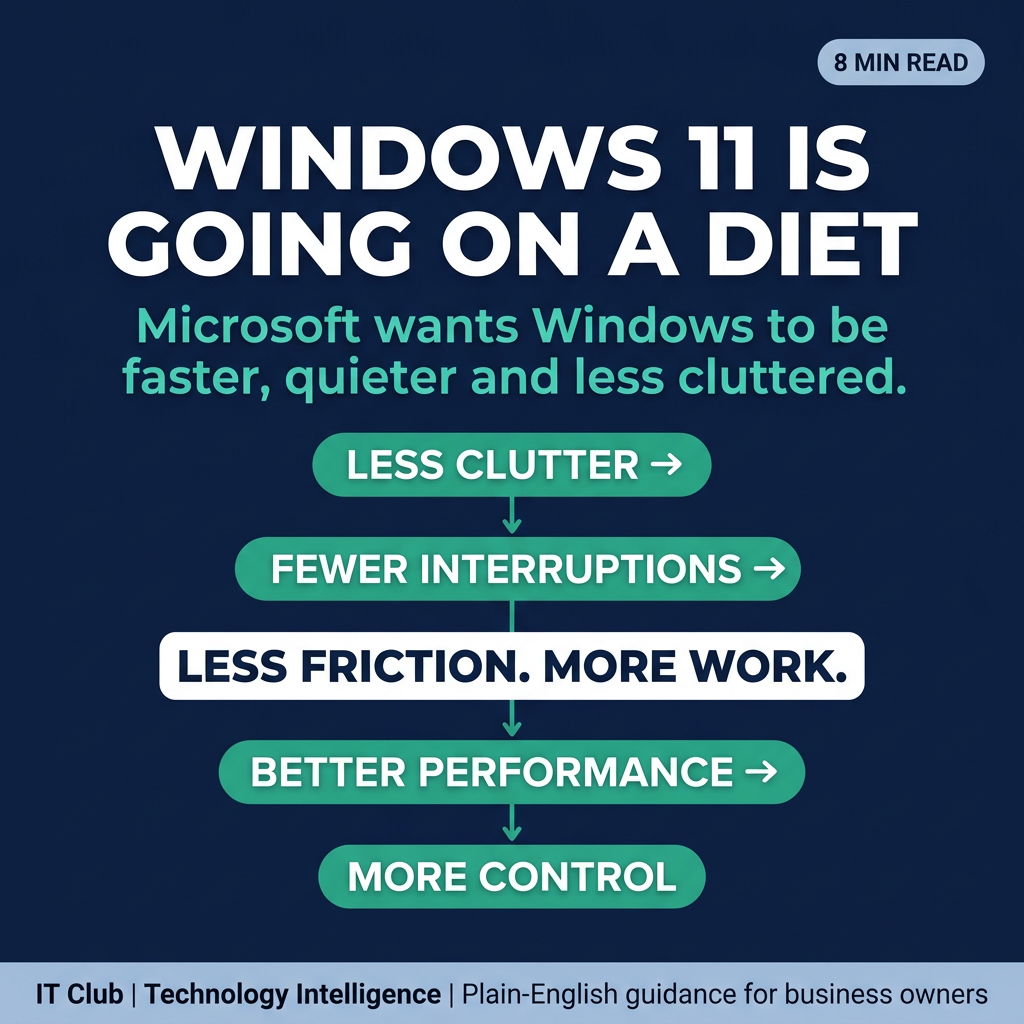
Tap to follow The IT Club Briefing on WhatsApp.
Related Articles
What Does a Business Actually Need From a £1,000+ Smartphone?
The latest premium phones are becoming powerful business computers. That still does not mean every employee needs the most expensive model.
Read articleWhen Everything Goes Digital, Who Gets Left Behind?
Moving services online can make businesses faster and easier to deal with — but only if customers can actually use them.
Read articleBuying a Used Windows Laptop? Check the Battery and SSD Health First
A used business laptop can look almost new while its battery is heavily worn or its storage has a very different history. These practical Windows checks help you judge what is underneath the case.
Read articleNeed help putting this into practice?
IT Club helps you understand the technology. If you need implementation, support or consultancy, the teams behind IT Club can help.
Altitude IT (opens in a new tab) — IT support, cyber security, Microsoft 365 and technology operations.
Altitude AI (opens in a new tab) — AI discovery, automation, governance and implementation.