Moving from Exchange Server to Microsoft 365: What Businesses Need to Plan
IT Club — Powered by Altitude IT (opens in a new tab)

Keep up with IT Club
Add IT Club as a preferred source in Google Search.
An Exchange Server migration covers identities, mail flow, applications, public folders, shared mailboxes, DNS, security, devices, backup and controlled decommissioning — not merely moving mailbox data. Microsoft supports cutover, minimal hybrid and full hybrid migration routes, each suited to different environments. Do not retire the Exchange Server until identity, applications, mail flow and recovery have all been validated.
A business has run an Exchange Server for years. It hosts every mailbox, manages every meeting room, relays email from scanners and printers, and underpins Active Directory identities that staff use to log in to Windows. The server is ageing. Exchange 2016 and 2019 are now out of mainstream Microsoft support. Hardware is reaching end of life. The IT provider recommends moving to Microsoft 365.
The project initially sounds simple: move everyone's email to Microsoft 365.
Then the details surface. Mailbox permissions are informal and undocumented. Applications send email through the server using unauthenticated SMTP. Public folders contain years of shared information with no obvious owner. User identities come from Active Directory and are synchronised with Microsoft Entra ID — but nobody is certain what happens to synchronisation after migration. Certificates are expiring. Third-party email filtering routes through another supplier. Shared mailboxes have informal delegates who access them without explicit permission records. Retention requirements are unclear. And the server cannot simply be switched off after the final mailbox moves.
The difficult part is rarely the first mailbox. It is discovering everything else that depends on Exchange.
Moving Exchange mailboxes is one part of the project. The business must also move mail flow, identity, applications, security and operational responsibility.
The Quick Answer
A controlled Exchange Server to Microsoft 365 migration should include:
- Business and technical discovery
- Source-server health review
- Microsoft tenant preparation
- Identity and directory planning
- Licence selection
- Security configuration
- Migration-method selection
- Mailbox and archive assessment
- Shared-mailbox and resource-mailbox review
- Public-folder review
- Application and SMTP discovery
- Pilot migration
- Coexistence planning
- DNS and mail-flow cutover
- Outlook and mobile reconfiguration
- Validation
- Backup and retention
- Controlled Exchange retirement
Microsoft supports several migration routes, including cutover, minimal hybrid and full hybrid. The correct route depends on Exchange version, mailbox count, Active Directory, business timescale, coexistence needs, public folders, applications and compliance requirements.
Do not remove the Exchange Server simply because the last visible mailbox has moved.
Last checked: 4 August 2026. Exchange support status, migration routes and current limits should be verified in current Microsoft documentation before planning.
Why businesses move from Exchange Server
Migration should solve a defined business and technical problem — not simply follow a cloud trend. Common reasons include:
| Reason | Detail |
|---|---|
| End of support | Exchange Server 2016 and 2019 support ended on 14 October 2025. No further normal security fixes, bug fixes or technical support are available from Microsoft under standard arrangements. Verify current status before planning. |
| Ageing hardware | Servers, storage and backup infrastructure may be reaching replacement cycles. Running unsupported software on ageing hardware increases risk. |
| Remote work | Exchange Online can reduce dependence on office-based infrastructure for mailbox access. Staff working from multiple locations benefit from cloud-hosted mail. |
| Business continuity | Microsoft 365 reduces reliance on one building, one server or one internet connection — though it introduces new dependencies on Microsoft's infrastructure. |
| Security capability | Microsoft 365 can support MFA, Conditional Access, Defender for Office 365 where licensed, audit logging and centralised identity controls. |
| Server management | Moving to Exchange Online removes patching, certificate management, database maintenance, storage management and local disaster-recovery obligations for the email platform. |
| Microsoft 365 integration | The business may want Teams, SharePoint, OneDrive, Intune, Microsoft Defender and Microsoft 365 Apps alongside Exchange Online. |
| Supplier or premises change | Migration may accompany an office move, IT provider change, server-room closure, acquisition or infrastructure consolidation. |
Do not imply Microsoft 365 is automatically the best option for every organisation. Current alternatives include upgrading to Exchange Server Subscription Edition (Exchange Server SE), retaining a supported hybrid model, or redesigning the identity and messaging environment entirely.
Exchange 2016 and 2019: end of support
Microsoft states that support for Exchange Server 2016 and Exchange Server 2019 ended on 14 October 2025. This means neither version receives normal security fixes, bug fixes or technical support under Microsoft's standard lifecycle policy.
A server continuing to operate is not the same as a server remaining supported or safe.
An unsupported Exchange Server may continue to function technically. It does not receive the security updates required to address newly discovered vulnerabilities. Over time the exposure increases. Organisations should verify current support status, current security-update position, and current Microsoft guidance on migration and Exchange Server Subscription Edition before planning.
Exchange Server Subscription Edition is Microsoft's current perpetual-licence server product. It requires an active Software Assurance subscription. Verify current supported upgrade paths, licensing requirements and hybrid management guidance before considering this route.
Current broad options for organisations still running Exchange 2016 or 2019 may include: migrating to Microsoft 365 and Exchange Online; upgrading to Exchange Server Subscription Edition; retaining a supported hybrid model; or redesigning the identity and messaging environment. Verify current Microsoft guidance before deciding.
What a complete migration includes
A migration is not a single technical step. It is a project with distinct workstreams that must be planned, sequenced and validated.
| Workstream | What it covers |
|---|---|
| 1 — Discovery | Servers, identities, mailboxes, applications, permissions and dependencies. |
| 2 — Target design | Microsoft 365 licensing, identity, security, mail flow and administration model. |
| 3 — Source remediation | Bring the Exchange environment to a suitable state for migration — health, certificates, updates. |
| 4 — Identity | Prepare Microsoft Entra ID, directory synchronisation and the future identity end state. |
| 5 — Email | Move mailboxes, archives, permissions and supported metadata. |
| 6 — Collaboration data | Assess public folders, shared mailboxes, resource mailboxes, calendars and permissions. |
| 7 — Applications | Reconfigure scanners, printers, websites, CRM systems and other SMTP-dependent systems. |
| 8 — Security | Configure MFA, Conditional Access, anti-phishing, email authentication and backup. |
| 9 — Devices | Prepare Outlook profiles, mobile devices, Microsoft 365 Apps and credentials. |
| 10 — Change management | Communicate, train and support users before, during and after cutover. |
| 11 — Validation | Confirm data, access, mail flow, backup, applications and compliance. |
| 12 — Decommissioning | Retire or retain Exchange components according to the agreed final architecture. |
The migration tool moves mailbox data. The project moves the business away from its dependence on the old server.
Choosing the correct migration route
Microsoft currently documents several migration routes for Exchange to Microsoft 365. The correct choice depends on the source Exchange version, mailbox count and configuration, Active Directory, business timescale, coexistence needs, public folders, applications and compliance requirements. Verify all current prerequisites and terminology in Microsoft's documentation before selecting a route.
| Method | Best suited to | Strengths | Risks |
|---|---|---|---|
| Cutover | Smaller environments; short migration period; limited coexistence needs | Simpler end state; rapid transition; fewer long-term hybrid components | Concentrated cutover; user disruption; Outlook reconfiguration; larger support spike |
| Minimal hybrid (express migration) | Smaller or medium environments; short migration period; synchronised identity required | Better mailbox-move experience than cutover; directory synchronisation; shorter hybrid duration | Identity complexity; hybrid prerequisites; source-server dependencies |
| Full hybrid | Staged migration over a longer period; larger or complex environments; ongoing on-premises requirements | Phased mailbox moves; richer coexistence; smoother user transition | More complex; certificates; routing; long-term management obligations |
| IMAP | Unsupported or non-Exchange-compatible sources; message-only migration | Works with older or non-Microsoft sources | No calendars, contacts, tasks, Exchange permissions or organisation configuration |
| Third-party tools | Specialist migration; unsupported workloads; archive conversion; complex coexistence | Wider workload coverage; advanced reporting | Vendor assessment required; additional cost; do not choose before discovery |
The simplest migration method is not always the least risky method.
Cutover migration
Cutover migration moves all planned mailboxes over a short defined period. Microsoft's documentation permits up to 2,000 mailboxes for cutover migration but recommends a much smaller practical limit — commonly cited as around 150 mailboxes. Verify the current figure and wording in Microsoft's documentation. A technical maximum and a sensible project size are not the same thing.
Cutover migration is potentially appropriate where the environment is small, all users can move over a short period, extended coexistence is not required, and the source configuration meets current prerequisites. It typically requires all mailboxes to be visible to Microsoft's migration service and Autodiscover to be accessible externally.
Outlook profiles will need reconfiguring after cutover. Mobile devices will require updated account settings. Applications sending through Exchange will need reconfiguring before or immediately after the cutover window. Plan support capacity accordingly.
Minimal hybrid (express migration)
Microsoft describes minimal hybrid — also known as express migration — as a route for organisations wanting a short migration period without retaining full hybrid functionality long term. It uses the Hybrid Configuration Wizard to establish a temporary hybrid relationship that supports a supported mailbox move experience and directory synchronisation.
This route typically requires a supported Exchange version, Microsoft Entra Connect (or Microsoft Entra Cloud Sync where applicable), and access to the Hybrid Configuration Wizard. Verify current supported Exchange versions, directory-synchronisation requirements, Hybrid Configuration Wizard requirements, migration-batch process, post-migration requirements and current limitations in Microsoft's documentation before selecting this route.
Minimal hybrid is generally more controlled than cutover for environments using Active Directory synchronisation. It does not maintain the richer coexistence features of full hybrid beyond the migration period.
Full hybrid migration
Full hybrid migration establishes a richer and potentially longer-term coexistence arrangement between on-premises Exchange and Exchange Online. It is potentially appropriate where coexistence is required, migration will run over a longer period, mailboxes will move in batches, free/busy and richer interoperability matter, or the organisation expects an ongoing hybrid relationship.
Full hybrid requires the Hybrid Configuration Wizard, a supported Exchange version, certificates, Autodiscover, appropriate firewall rules, directory synchronisation via Microsoft Entra Connect, and OAuth configuration for features such as free/busy sharing and message tracking. Recipient management may remain on premises during the hybrid period.
Verify current supported Exchange versions, Hybrid Configuration Wizard behaviour, mail-flow options, OAuth requirements, Autodiscover configuration, certificate requirements, directory-synchronisation requirements and ongoing management implications before committing to this route.
Staged and IMAP migration
Staged migration is mainly a legacy method associated with Exchange 2003 and Exchange 2007. It is not the standard migration route for Exchange 2010, 2013, 2016, 2019 or Subscription Edition. Verify current Microsoft wording before presenting this as an option.
IMAP migration generally moves email messages and folders only. It does not normally migrate calendars, contacts, tasks, mailbox rules, permissions, shared-mailbox configuration or Exchange-specific metadata.
IMAP can move messages, but it does not reproduce an Exchange organisation.
Third-party migration tools may still be appropriate where the organisation needs complex coexistence, public-folder migration, advanced reporting, an unsupported source version, archive migration, specialist transformations, multiple forests, acquisition or separation scenarios, or unusual compliance requirements. Do not endorse a specific vendor without current assessment.
Choose the migration route after discovery — not because an old guide uses a particular product.
Identity and Active Directory
Many Exchange environments rely on on-premises Active Directory for user accounts, email address attributes, group membership, password policies and authentication. Mailbox migration does not automatically remove or resolve that dependency.
Before migration, review user accounts, user principal names, primary SMTP addresses, aliases, proxyAddresses, disabled users, service accounts, groups, organisational units, domain health, domain controllers, DNS, Microsoft Entra Connect configuration, synchronisation scope, duplicate attributes, soft and hard matching, source of authority, password-hash synchronisation, pass-through authentication or federation settings, and cloud-only emergency-administrator accounts.
Before removing Exchange or directory synchronisation, establish which system remains authoritative for users, groups and email attributes.
Possible identity end states include: retaining on-premises Active Directory with continued synchronisation; moving towards cloud-only identity over time; removing directory synchronisation after controlled planning; retaining Exchange management capability; deploying supported Exchange management tools; or upgrading to Exchange Server Subscription Edition where required. There is no single correct model. The correct end state must be designed for each organisation.
Where users remain synchronised from on-premises Active Directory, Exchange attributes — such as email addresses, aliases and the Exchange GUID — may still require supported management tools or a supported Exchange management arrangement after migration. Verify current Microsoft guidance on Exchange management tools, supported decommissioning, recipient management without a running Exchange server, cloud-only conversion, and directory-synchronisation removal before planning the identity end state.
Microsoft 365 tenant and licensing
Before migration, the business must establish and independently control the Microsoft 365 tenant. Confirm the tenant name, onmicrosoft.com domain, tenant ID, domain ownership, DNS access, Global Administrator access, emergency administrator access, delegated provider access arrangements, licence ownership, billing ownership and documented recovery processes.
Do not move business email into a Microsoft tenant that only an external supplier can administer.
Licensing affects Exchange Online mailbox size, archive mailboxes, Microsoft 365 desktop applications, Teams, OneDrive, SharePoint, Defender for Office 365, Microsoft Intune, Conditional Access, retention policies, eDiscovery, litigation hold, data-loss prevention, shared-device use and mobile-device management. Current plans include Microsoft 365 Business Basic, Business Standard, Business Premium and Exchange Online plans, with enterprise plans available for larger organisations. Verify current feature entitlements before selecting.
Licence selection is part of solution design, not an administrative task to complete after migration.
Mailboxes, archives and permissions
Record mailbox count, sizes, item counts, archive mailboxes, recoverable items, retention tags, legal holds, delegates, Full Access permissions, Send As permissions, Send on Behalf permissions, forwarding rules, mailbox rules, transport rules, aliases, additional SMTP addresses, inactive users, former employees, hidden mailboxes, disconnected mailboxes and potentially corrupt or very large items.
Large mailboxes and high item counts can affect migration time even where bandwidth appears sufficient. Throttling and migration-service limits may affect the number of items moved per hour. Do not promise a migration duration without measurement.
Archive mailboxes migrate separately and may require specific handling depending on the migration route. Verify current archive migration support for the selected method before planning.
A damaged or poorly maintained source server can turn a migration into a recovery project.
Shared mailboxes and resource mailboxes
Shared mailboxes, meeting-room mailboxes and equipment mailboxes require specific assessment. For each, identify the owner, business purpose, current users, access permissions, delegates, auto-mapping, forwarding rules, aliases, archive requirements, retention obligations and any application or service-account use.
A shared mailbox is often a business process disguised as an email address.
Shared mailboxes may require a Microsoft 365 licence in some configurations. Room and equipment mailboxes need booking policies reviewed. Delegated access and auto-mapping behaviour may differ from on-premises Exchange behaviour. Verify current Exchange Online shared-mailbox and resource-mailbox behaviour before migrating.
Public folders
Public folders require a distinct assessment. Inventory the hierarchy, total size, item counts, permissions, mail-enabled public folders, owners, content age, business purpose, duplicates, retention obligations, shared-calendar use and any applications that depend on public folders.
Public folders should be assessed as business information — not automatically copied because they exist.
Potential destinations may include Exchange Online public folders, shared mailboxes, Microsoft 365 Groups, SharePoint, Teams, document libraries or archive systems. The correct destination depends on the use case. Public-folder migration to Exchange Online has specific prerequisites and limits. Verify current support in Microsoft's documentation. Do not assume every public folder should be recreated unchanged.
Applications, printers and SMTP relays
Applications may send email through Exchange using authenticated SMTP, anonymous relay, receive connectors, direct send or IP-based trust with hard-coded server names. Inventory every system that sends through the server before migration.
The first sign that an application depended on Exchange should not be the day the server is switched off.
Systems that commonly depend on Exchange include: multifunction printers, scanners, website contact forms, CRM systems, ERP systems, monitoring tools, backup systems, payroll software, finance applications, alarm and access-control systems, line-of-business applications, scripts, scheduled tasks and third-party services.
Each application may require: Microsoft 365 SMTP configuration, an Exchange Online relay connector, application reconfiguration to support modern authentication, a new certificate, a third-party SMTP delivery service or vendor involvement. Establish what each system needs well before the server is retired.
DNS, mail flow and email authentication
DNS controls are essential to a controlled cutover. Document all existing DNS records — MX, Autodiscover, SPF, DKIM, DMARC, and any mail-gateway or filtering records — before making any changes. Identify every system that sends email using the domain.
| Record | Purpose | Migration action |
|---|---|---|
| MX | Controls where new inbound email is delivered | Change after migration passes are complete and validated; monitor queues after the change |
| Autodiscover | Helps Outlook and mobile clients find mailbox settings | Update to point clients to Exchange Online; test before and after cutover |
| SPF | Identifies systems permitted to send for the domain | Update to include Microsoft 365; remove old Exchange or gateway entries after validation |
| DKIM | Cryptographic email-signing control | Enable and verify for Microsoft 365 before or at cutover; do not leave unsigned |
| DMARC | Policy and reporting built on SPF and DKIM | Maintain or improve through migration; do not weaken during the transition |
Changing mail routing tells new email where to go. It does not prove that historical email, identities or applications migrated successfully.
If third-party email filtering is in use, update the filtering service's configuration as well as DNS. Do not assume the MX change alone redirects all email correctly where a gateway or filter sits between the internet and the mail server.
A migration is not complete while email authentication still describes the old environment.
Security before migration
The target environment should be secured before users and data arrive. Configure or review the following before moving data into Microsoft 365:
- Global Administrator accounts — dedicated credentials, not shared with daily-use accounts
- Emergency access administrator accounts — cloud-only, MFA-exempt break-glass
- MFA for all accounts before migration begins
- Security Defaults as a minimum where Conditional Access is not available
- Conditional Access where licensed — do not disable for migration convenience
- Administrator roles — apply least privilege; review delegated provider access
- Application consent policies — review what third-party applications can access
- Legacy authentication — disable where possible before or immediately after migration
- Defender for Office 365 where licensed — anti-phishing, anti-spam, Safe Links, Safe Attachments
- Mailbox auditing and unified audit logging
- External forwarding controls — review transport rules
- Mobile-device access and Intune where licensed
- Backup — establish before migration data is copied
- Retention policies — confirm before data arrives
- SPF, DKIM and DMARC — plan configuration changes
The target platform should be secured before it becomes the organisation's primary email system.
Do not weaken security controls for migration convenience without a documented reason, a limited duration, explicit approval, a rollback plan and a post-migration verification step.
Discovery and assessment
A migration price or plan based only on mailbox count is largely a guess. Discovery should cover all of the following:
| Area | What to assess |
|---|---|
| Business | Users, locations, working hours, remote staff, critical dates, blackout periods, regulated activities, project sponsor and support expectations. |
| Source infrastructure | Exchange version, cumulative update level, security update level, operating system, database health, storage, transaction logs, certificates, namespaces, Autodiscover, MRS Proxy, firewall rules, backup, antivirus exclusions and mail flow. |
| Identities | User accounts, user principal names, email addresses, aliases, groups, service accounts, administrators, disabled users, former staff and synchronisation configuration. |
| Mailbox sizes, archives, permissions, delegates, transport rules, send and receive connectors, journalling, accepted domains, remote domains, public folders, retention, holds, disconnected mailboxes and system mailboxes. | |
| Applications | SMTP systems, printers, scanners, websites, CRM, ERP, line-of-business software, monitoring systems, backup systems and scripts. |
| Devices | Windows, macOS, mobile devices, Outlook versions, Office versions, shared computers, remote desktops, terminal servers and cached mode settings. |
| Security | MFA status, filtering, encryption, backup, audit, email authentication, privileged access and existing Conditional Access policies. |
| Compliance | Retention, journalling, legal holds, eDiscovery, third-party archive systems, data residency and regulatory obligations. |
Data cleanup should accompany discovery. Before migration: identify former users; review obsolete mailboxes; review large mailboxes; archive where appropriate; remove unnecessary forwarding; document shared-mailbox ownership; review permissions; identify corrupt items; review public folders; record legal holds; review distribution groups; and resolve duplicate identities.
Migration is a chance to reduce clutter, but not authority to destroy business records. Do not delete data without business approval, a retention review, legal review where required and a documented decision.
Pilot migration
A pilot is not a demonstration. It is where the project finds incorrect assumptions before they affect the whole business.
Select representative pilot users including: senior management, finance, operations, remote workers, large mailboxes, archive users, delegates, shared-mailbox users, mobile-device users, public-folder users, specialist application users and people using several devices.
Validate in the pilot: sign-in, MFA, Outlook, historical email, calendars, contacts, delegates, shared-mailbox access, archives, search, mobile devices, meeting rooms, SMTP systems, printing, scanning, internal mail, external mail, backup and the support process.
Coexistence and cutover
During phased migration, some mailboxes may remain on premises while others operate in Exchange Online. Mail routing must work in both directions. Address-book visibility, free/busy information, shared-mailbox access across environments and application relay may all require specific configuration. Support complexity increases and both platforms require monitoring.
Coexistence reduces the size of one cutover but increases the period during which two environments must work correctly.
A controlled cutover sequence should include: completing all planned migration passes; resolving failed items; testing applications; documenting DNS; reducing TTL where appropriate; notifying users; preparing support; confirming backup; and confirming rollback or containment options — before making DNS changes.
During cutover: complete the final synchronisation pass; update the MX record; update Autodiscover; confirm SPF; enable or verify DKIM; confirm DMARC; update connectors and filtering; test internal and external mail; test shared mailboxes and applications; and monitor mail queues.
After cutover: validate mail flow; validate historical data, calendars and permissions; update Outlook and mobile devices; monitor security; monitor support tickets; and maintain source server access during the validation period.
The DNS change is a point inside the migration plan — not proof that the migration is finished.
User devices and Outlook
Cloud migration does not remove the work required on every device that previously trusted the old server.
Users may require: Microsoft 365 Apps installation or activation, Outlook profile reconfiguration or recreation, account reauthentication, MFA registration, Microsoft Authenticator setup, mobile Outlook configuration, shared-mailbox access reconfiguration, archive access, autocomplete cache update, updated email signatures, Teams installation, OneDrive sign-in, and credential cleanup on saved-password stores.
Check: unsupported Outlook versions, Windows and macOS versions, RDS or terminal-server environments, shared devices, cached mode settings, oversized OST files, local PST files that may need addressing, Outlook add-ins, CRM integration and antivirus integration.
Users judge a migration by whether they can send, receive and find their email — not by whether the migration dashboard reports success.
Backup, retention and compliance
Migration is not backup.
A migration can transfer deleted, corrupt or incorrectly permissioned information just as efficiently as it transfers good data.
Before migration: confirm Exchange Server backup, database backup, recovery process and a recent successful restore test. Confirm Microsoft 365 backup is in place before migration data is copied.
After migration: confirm Exchange Online backup coverage, shared-mailbox coverage, archive mailbox coverage, departed-user handling, backup authentication, restore testing, retention policies and source-backup retention for the agreed period.
Do not describe Microsoft retention policies, litigation hold or Recoverable Items as equivalent to a complete independent backup. They serve compliance purposes. A separate recoverable backup provides protection against accidental deletion, ransomware, account compromise and administrative error.
For compliance: review mailbox retention, litigation holds, eDiscovery holds, journalling, third-party archives, regulatory records, departed-user data, inactive mailboxes, public-folder records, audit requirements, encrypted mail and sensitivity labels. Some obligations may require source retention, archive export, legal review, Microsoft Purview configuration or staged closure.
Do not remove a compliance system until somebody has confirmed which records it still preserves.
Decommissioning Exchange Server
The last mailbox leaving the server does not automatically remove the server's management role.
Before removing Exchange Server, confirm all of the following:
- All intended mailboxes migrated and validated
- Archive mailboxes migrated
- Shared and resource mailboxes validated
- Public folders addressed
- Mail flow stable in Microsoft 365
- Applications and SMTP relays reconfigured and tested
- Printers and scanners tested
- Transport rules and connectors recreated or retired
- Third-party filtering updated
- DNS updated — MX, Autodiscover, SPF, DKIM, DMARC
- Certificates reviewed
- Backup confirmed
- Legal holds and compliance requirements addressed
- Recipient management method understood and agreed
- Active Directory source of authority understood
- Microsoft Entra Connect future agreed
- Outlook and mobile devices validated
- Unresolved migration failures documented
- Source data retained for the approved period
- Written business sign-off obtained
Where users remain synchronised from on-premises Active Directory, Exchange attributes may still require supported management tools or a supported Exchange management arrangement after the last mailbox has moved. Verify current Microsoft guidance on Exchange management tools, supported decommissioning, recipient management without a running Exchange server, cloud-only conversion and directory-synchronisation removal before proceeding.
Do not recommend manually editing Exchange attributes in Active Directory as a casual workaround. Verify supported methods in current Microsoft documentation.
Common migration mistakes
- Treating the project as mailbox copying — overlooking identity, applications, public folders, DNS and security
- Using an old guide as a current runbook — migration routes, tooling and prerequisites change
- Choosing a tool before discovery — the route should follow the environment
- Continuing to rely on unsupported Exchange without a defined plan
- No Global Administrator access or DNS access before migration begins
- No backup or no proven restore test
- No Active Directory or identity assessment
- Incorrect Microsoft licences — discovering the shortfall after migration
- No target security baseline — moving data into an unsecured platform
- No MFA configured before data arrives
- Overlooking public folders, archive mailboxes, shared-mailbox permissions, printers, scanners, website forms and line-of-business SMTP
- Ignoring transport rules, connectors, journalling and third-party filtering
- Changing the MX record too early — before validation is complete
- Failing to document DNS before making changes
- No pilot migration
- No coexistence plan where multiple mailbox batches are required
- No user communication before cutover
- No cutover support capacity
- No rollback or containment plan
- Treating migration as backup — not establishing independent recovery
- Decommissioning Exchange before recipient management is resolved
- Removing Microsoft Entra Connect without planning the identity end state
- Cancelling third-party filtering before Microsoft 365 email authentication is verified
- Leaving SPF, DKIM or DMARC still describing the old environment after cutover
- Leaving the old server running indefinitely without defined ownership or a retirement plan
Warning signs: pause before proceeding
Pause the migration where any of the following apply:
- Exchange is unsupported and unpatched
- Server or database health is unknown
- Backups cannot be restored
- Administrator credentials are unavailable
- Tenant ownership is unclear — the business cannot independently administer Microsoft 365
- Domain or DNS access is missing
- Active Directory health is unknown
- Mailbox sizes are unknown
- Public folders are undocumented
- SMTP applications are unknown
- Shared-mailbox permissions are undocumented
- Legal holds or compliance requirements are unclear
- Certificates are expiring
- No migration route has been justified by the assessment
- No pilot users have been selected
- No user communications exist
- No support plan exists
- No source-retention period has been agreed
- Exchange retirement is scheduled before dependency testing
- The cutover date is driven only by hardware failure or licence expiry
When the dependencies are unknown, the next phase is discovery — not migration.
Migration readiness checklist
Is your business ready to move Exchange Server to Microsoft 365?
| Area | Questions to answer |
|---|---|
| Business | Why are we moving? Who owns the project? What disruption is acceptable? Are critical dates known? |
| Source | Is the Exchange version known? Is the server supported? Is the latest supported update installed? Are databases healthy? Is backup proven? |
| Tenant | Does the business control Microsoft 365? Do we have Global Administrator access? Do we control DNS? Are licences confirmed? |
| Identity | Is Active Directory healthy? Are users and groups documented? Is Microsoft Entra Connect in use? Is the future identity model agreed? |
| Mailboxes | Are mailbox sizes known? Are archives known? Are shared mailboxes documented? Are permissions documented? Are legal holds reviewed? |
| Public folders | Are they inventoried? Is each one still required? Is the destination agreed? |
| Applications | Are printers and scanners known? Are website forms known? Are SMTP applications known? Are connectors documented? |
| Security | Is MFA configured? Is Conditional Access reviewed? Is Defender configured where licensed? Are SPF, DKIM and DMARC planned? Is Microsoft 365 backup configured? |
| Delivery | Is the migration route justified? Has a pilot completed? Is DNS documented? Is user support available? |
| Closure | Are failed items resolved? Are applications retested? Is recipient management understood? Is source retention agreed? Is Exchange retirement subject to written approval? |
Practical business implications
| Implication | What it means |
|---|---|
| Exchange 2016 and 2019 are out of support | Organisations still running them need a supported plan — whether migrating to Microsoft 365, upgrading to Exchange SE or another supported path. |
| The project is larger than email | Identity, applications, security and devices all require deliberate planning. |
| Microsoft provides several migration routes | Cutover, minimal hybrid and full hybrid suit different environments. A technical maximum is not a project recommendation. |
| Active Directory may remain | The correct identity end state must be designed. Removing synchronisation without planning can break recipient management. |
| Application relay is a common failure point | Printers, scanners, websites and business systems may depend on Exchange SMTP relay. |
| Public folders need their own decision | They should not be copied blindly. The destination depends on current business use. |
| Security should improve | The target should be secured before data arrives, not after cutover. |
| Backup remains necessary | Migration and retention policies do not replace independent recovery. |
| The old server may retain a management role | Decommissioning requires current Microsoft guidance and business sign-off. |
| User support matters | A green migration dashboard does not mean every user can work. |
The IT Club view
Exchange migration projects are often underestimated because the mailbox move is visible while the dependencies are hidden. The server may quietly provide identity attributes, mail routing, SMTP relay, shared access, application delivery, public-folder access, compliance functions and recipient management.
The mailbox is what the user sees. The infrastructure around it is what keeps the business working.
IT Club recommends: using current Microsoft guidance; completing discovery before quotation; ensuring the business controls the Microsoft tenant; performing source-server health checks; selecting the migration method after assessment; securing the target before moving data; using representative pilot users; completing SMTP and application discovery; planning a deliberate DNS cutover; establishing tested backup; communicating clearly with users; retaining source data for an agreed period; following supported Exchange decommissioning guidance; and obtaining written business approval before retirement.
A good Exchange migration does not merely move email into Microsoft 365. It removes the organisation's dependence on the old environment without creating a new set of hidden risks.
Related business questions
Can Exchange Server be moved to Microsoft 365?
Yes. Microsoft supports several migration routes including cutover, minimal hybrid and full hybrid. The correct route depends on the source environment, mailbox count, Active Directory, coexistence needs and compliance requirements.
Is Office 365 now called Microsoft 365?
Microsoft rebranded Office 365 to Microsoft 365 for business and enterprise plans. Some individual consumer plans retain different naming. Use Microsoft 365 as the current general term for the cloud subscription platform.
Is Exchange Online the same as Exchange Server?
No. Exchange Server is Microsoft email software running on the organisation's own or hosted infrastructure. Exchange Online is Microsoft's cloud-hosted Exchange service within a Microsoft 365 tenant. They can coexist in a hybrid configuration.
Is Exchange Server 2016 or 2019 still supported?
Microsoft states that support for Exchange Server 2016 and Exchange Server 2019 ended on 14 October 2025. Neither version currently receives normal security fixes, bug fixes or technical support. Verify current status in Microsoft's lifecycle documentation.
What is Exchange Server Subscription Edition?
Exchange Server Subscription Edition is Microsoft's current perpetual-licence Exchange server product, requiring an active Software Assurance subscription. It is the successor to Exchange 2019. Verify current supported upgrade paths, licensing terms and feature set before considering this route.
Must businesses move Exchange to the cloud?
No. Options include migrating to Microsoft 365, upgrading to Exchange Server Subscription Edition, retaining a supported hybrid model or redesigning the environment. The correct choice depends on the organisation's requirements.
What migration methods does Microsoft support?
Microsoft currently supports cutover migration, minimal hybrid (express migration) and full hybrid migration for supported Exchange versions. IMAP migration handles messages only. Third-party tools may support additional workloads. Verify current prerequisites in Microsoft's documentation.
What is a cutover migration, and how many mailboxes can it handle?
Cutover migration moves all planned mailboxes over a short defined period. Microsoft documentation permits up to 2,000 mailboxes but recommends a much smaller practical limit, commonly cited around 150. Verify current figures. A technical maximum and a sensible project size are not the same.
What is minimal hybrid or express migration?
Minimal hybrid — also known as express migration — uses a temporary hybrid relationship to support a controlled mailbox-move experience with directory synchronisation, without retaining full hybrid functionality long term. Verify current prerequisites and supported Exchange versions.
What is full hybrid Exchange?
Full hybrid establishes a richer, potentially longer-term coexistence between on-premises Exchange and Exchange Online, supporting phased mailbox moves, free/busy sharing and richer interoperability. It is more complex and carries ongoing management obligations.
What does IMAP migration move?
IMAP generally moves email messages and folders only. It does not migrate calendars, contacts, tasks, mailbox rules, permissions, shared-mailbox configuration or Exchange-specific metadata.
Are third-party migration tools required?
Not in all cases. Microsoft's native routes cover many scenarios. Third-party tools may be appropriate for complex coexistence, public-folder migration, archive conversion, advanced reporting or unusual compliance requirements. Do not select a tool before completing discovery.
Does Active Directory need to remain after migration?
Not necessarily for all organisations, but the decision must be deliberate. Where users remain synchronised from Active Directory, Exchange attributes may still require supported management tools. Removing directory synchronisation without planning can affect recipient management.
Can Entra Connect be removed after migration?
Only after controlled planning. Where user identities are synchronised from Active Directory, removing Microsoft Entra Connect without a documented identity end state can affect user accounts, email attributes and management capability. Verify current guidance before proceeding.
Can Exchange be switched off after the final mailbox moves?
Not automatically. Exchange may still provide recipient management, SMTP relay, public-folder access, archive access and other functions. All dependencies must be validated before retirement. Written business approval should be obtained.
Can shared mailboxes, archives and public folders migrate?
Shared mailboxes can generally migrate to Exchange Online. Archive mailboxes can migrate with specific handling. Public folders can migrate to Exchange Online public folders or alternative destinations, subject to current prerequisites and limits. Verify each case in Microsoft's documentation.
What happens to printers, scanners and website forms?
Devices and applications that send email through Exchange via SMTP relay need reconfiguring before or when the server is retired. Each may require Microsoft 365 SMTP configuration, an Exchange Online relay connector, a third-party SMTP service or vendor involvement.
When should the MX record change?
After migration passes are complete and validated. Changing the MX record directs new inbound email. It does not migrate historical email, calendars, contacts, permissions or applications.
Is Microsoft 365 backup included?
Microsoft provides retention policies, litigation hold and Recoverable Items, which serve compliance purposes. These are not an independent backup equivalent. A separate backup service should be established before migration data is copied.
How long does an Exchange migration take?
It depends on mailbox count, sizes, item counts, migration method, bandwidth, throttling and scope. Do not promise a duration without measurement and discovery.
Can an Exchange migration have zero downtime?
Migration typically involves some user disruption — profile changes, reauthentication, short periods without Outlook access, device reconfiguration and application downtime. Planning minimises disruption; eliminating it entirely is not realistic for most Exchange environments.
Can IT Club help assess an Exchange migration plan?
Yes. Use the Ask the Advisor form to ask about migration routes, Exchange versions, Active Directory, shared mailboxes, public folders, applications, DNS, security or the checks required before retiring an on-premises server.
Administrator technical note
The following technical terms are used in Exchange migration planning. Verify all current behaviours, prerequisites and options in Microsoft's official documentation before using them in a project plan.
Exchange Server versions: Exchange 2016 and 2019 reached end of support on 14 October 2025. Exchange Server Subscription Edition is the current perpetual-licence server product, requiring Software Assurance. Exchange Online is the cloud-hosted service within Microsoft 365.
Migration methods: Cutover migration moves all mailboxes in a single batch over a short period. Minimal hybrid (express migration) uses a temporary hybrid relationship via the Hybrid Configuration Wizard to support a controlled mailbox move with directory synchronisation. Full hybrid supports phased migration, richer coexistence and longer-term hybrid arrangements. Staged migration is a legacy method associated with Exchange 2003 and 2007. IMAP migration moves messages and folders only — no calendars, contacts, tasks, permissions or Exchange metadata.
Key components: The Hybrid Configuration Wizard configures the hybrid relationship between Exchange Server and Exchange Online. MRS Proxy enables mailbox replication service connections. Migration endpoints define how the migration service connects to the source. Migration batches control the mailbox-move process and incremental synchronisation. The Exchange Admin Centre manages Exchange Online configuration.
Identity concepts: Exchange GUID is a unique identifier assigned to a mailbox. Archive GUID identifies the archive mailbox. X500 addresses preserve legacy routing addresses and prevent NDRs when migrating from on-premises Exchange. MailUser objects represent remote mailboxes for users not yet migrated. Remote mailboxes are on-premises objects representing Exchange Online mailboxes. Source of authority determines which system is trusted to manage identity attributes. Password-hash synchronisation copies password hashes from Active Directory to Microsoft Entra ID. Soft and hard matching associate on-premises objects with existing cloud objects.
Key distinctions: Mailbox migration moves supported mailbox content into Exchange Online. Identity synchronisation synchronises users and attributes between Active Directory and Microsoft Entra ID — it is a separate process. Mail-flow cutover changes where inbound email is delivered and which systems are authorised to send. Application remediation reconfigures SMTP-dependent systems. Device reconfiguration updates Outlook profiles and mobile accounts. Compliance preservation retains holds, archives and eDiscovery capability through and after migration. Backup provides a separate recoverable copy. Exchange retirement is the controlled removal of on-premises Exchange components after validation.
Mailbox types requiring separate assessment: user mailboxes, shared mailboxes, room mailboxes, equipment mailboxes, archive mailboxes, public-folder mailboxes, distribution groups, mail-enabled security groups, arbitration mailboxes and system mailboxes.
Permissions: Full Access grants access to the entire mailbox. Send As allows sending as the mailbox address. Send on Behalf allows sending with a visible delegate indication. Auto-mapping automatically opens delegated mailboxes in Outlook — behaviour may differ between Exchange Server and Exchange Online.
No production-ready command sequence is provided here. All migration steps should reference current Microsoft documentation, current cumulative updates, and current supported tooling for the Exchange version in the environment.
Choosing an IT Support Company in Manchester: A Buyer’s Guide →
Choosing an IT Support Company in Bristol: A Buyer’s Guide →
Choosing an IT Support Company in London: A Buyer’s Guide →
Choosing an IT Support Company in Leeds: A Buyer’s Guide →
Choosing an IT Support Company in Birmingham: A Buyer’s Guide →
Operational Heartbeat
An Exchange migration needs an Operational Heartbeat: identities, mailboxes, permissions, applications, connectors, email authentication, backup and remaining on-premises dependencies should be reviewed rather than assumed to have disappeared.
Microsoft 365 environments change after migration. Users join and leave. Licences change. Shared-mailbox access drifts. Old connectors remain configured. Scanners are replaced by devices with different SMTP settings. Applications are updated. SPF records grow as new services are added. DKIM keys rotate. DMARC reports surface problems that were not visible before. Delegated provider access changes. Backup authentication expires. Former Exchange dependencies — SMTP relays, public folders, applications — may remain active long after the server was expected to retire.
A recurring review should check: Microsoft administrators, emergency access, MFA, licences, mailboxes, shared-mailbox permissions, distribution groups, connectors, SMTP applications, printers and scanners, email authentication (SPF, DKIM, DMARC), transport rules, external forwarding, backup, restore testing, retention, unresolved migration items, remaining Exchange services, server patching and certificates, supplier responsibilities and corrective actions from previous reviews.
Plain-English Takeaway
Moving from Exchange Server to Microsoft 365 involves far more than copying mailboxes. The business must assess Active Directory, shared mailboxes, public folders, applications, SMTP relays, permissions, DNS, security, devices, backup and the future management of Exchange attributes. Microsoft supports several migration routes, including cutover, minimal hybrid and full hybrid, but the correct method depends on the source environment and required coexistence. Do not retire the Exchange Server until data, mail flow, applications, identity and recovery have been validated.
Need the practical steps?
A short, instruction-led version of this topic is available in the Knowledge Centre.
View the Knowledge Centre Guide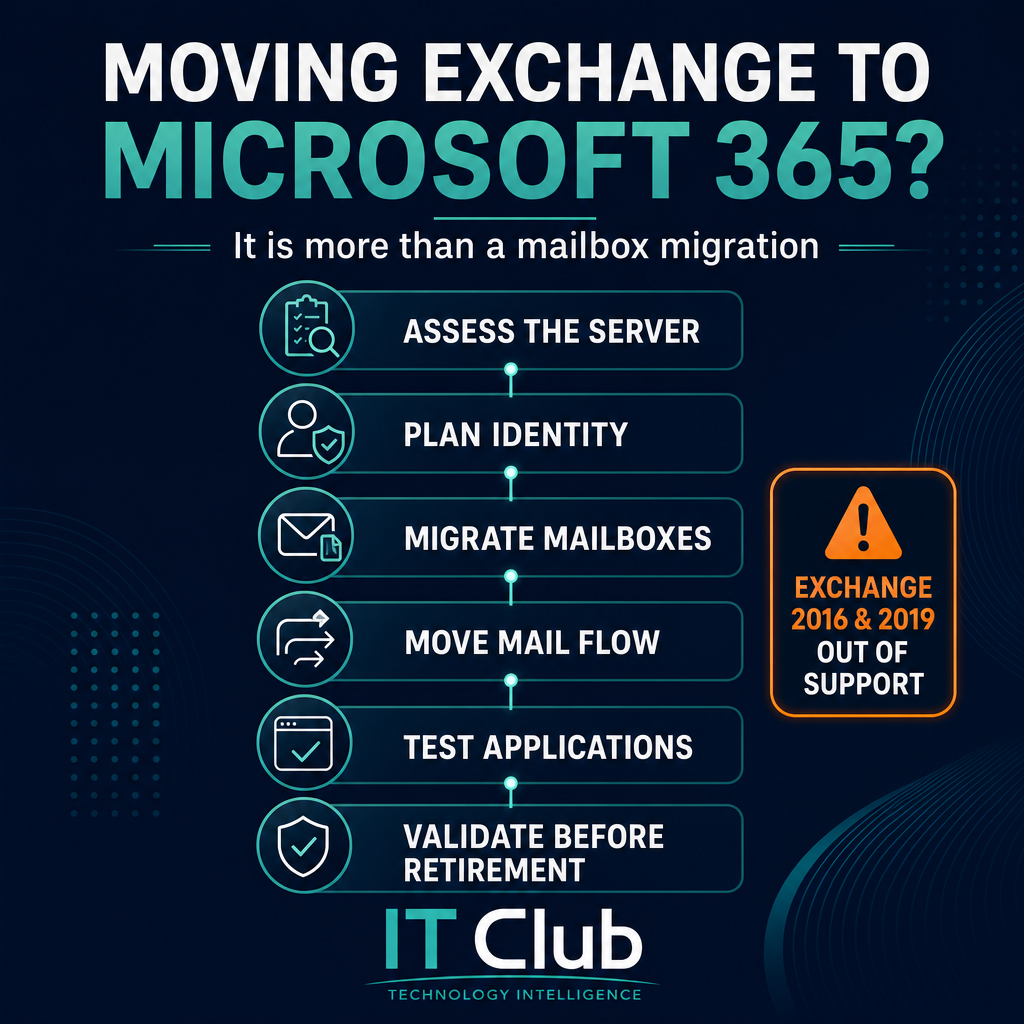
Tap to follow The IT Club Channel on WhatsApp.
Related Articles
BT Has Bought TalkTalk – What Do You Actually Need to Do?
TalkTalk has been acquired by BT. If your business uses TalkTalk or PlatformX Communications, the important message is simple: don't panic, but don't ignore it either. This is also a useful reminder that your broadband connection is a business dependency, not just another monthly bill.
Read articleYou checked how to get into your cloud software. Did you check how to get out?
Before relying on a SaaS platform, check how you would export your data, end the contract and keep operating if the supplier relationship goes wrong.
Read articleYour IT Provider Has Five-Star Reviews. What Do They Actually Prove?
Five-star IT provider reviews are useful evidence, but they are not due diligence. Learn how to read ratings, check selection effects and ask better questions.
Read articleNeed help putting this into practice?
IT Club helps you understand the technology. If you need implementation, support or consultancy, the teams behind IT Club can help.
Altitude IT (opens in a new tab) — IT support, cyber security, Microsoft 365 and technology operations.
Altitude AI (opens in a new tab) — AI discovery, automation, governance and implementation.